
Dragonia App - Mobile Site & Home Screen Shortcut
The Dragonia app experience in Canada is the mobile website on your home screen. There is no verified native app. You will find no Android APK, no App Store listing and no PC client. Open the mobile site in your phone browser instead. Then use Add to Home Screen to get a one-tap icon. The icon opens the casino and sportsbook full screen, like a regular app. Nothing needs to be downloaded or installed. 18+ only. Regional restrictions apply.
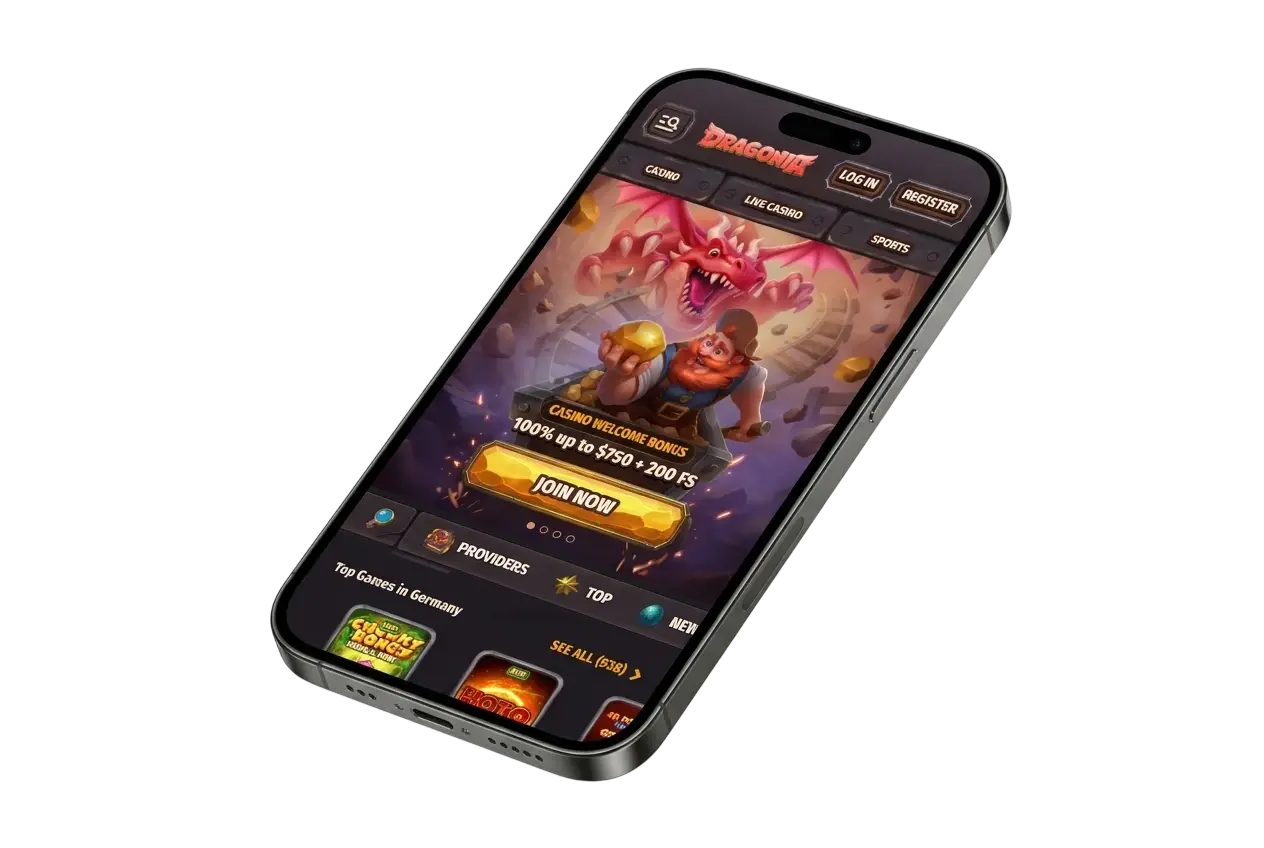
Dragonia App Features & Design
The Dragonia mobile site keeps the look of the desktop site. It uses a dark background with gold and coral highlights and clear buttons. Menus, game tiles and banners resize to fit a phone or tablet. They work in portrait and landscape. Slots, live tables and sports sit in the same layout. Your account, balance and settings carry across every device.
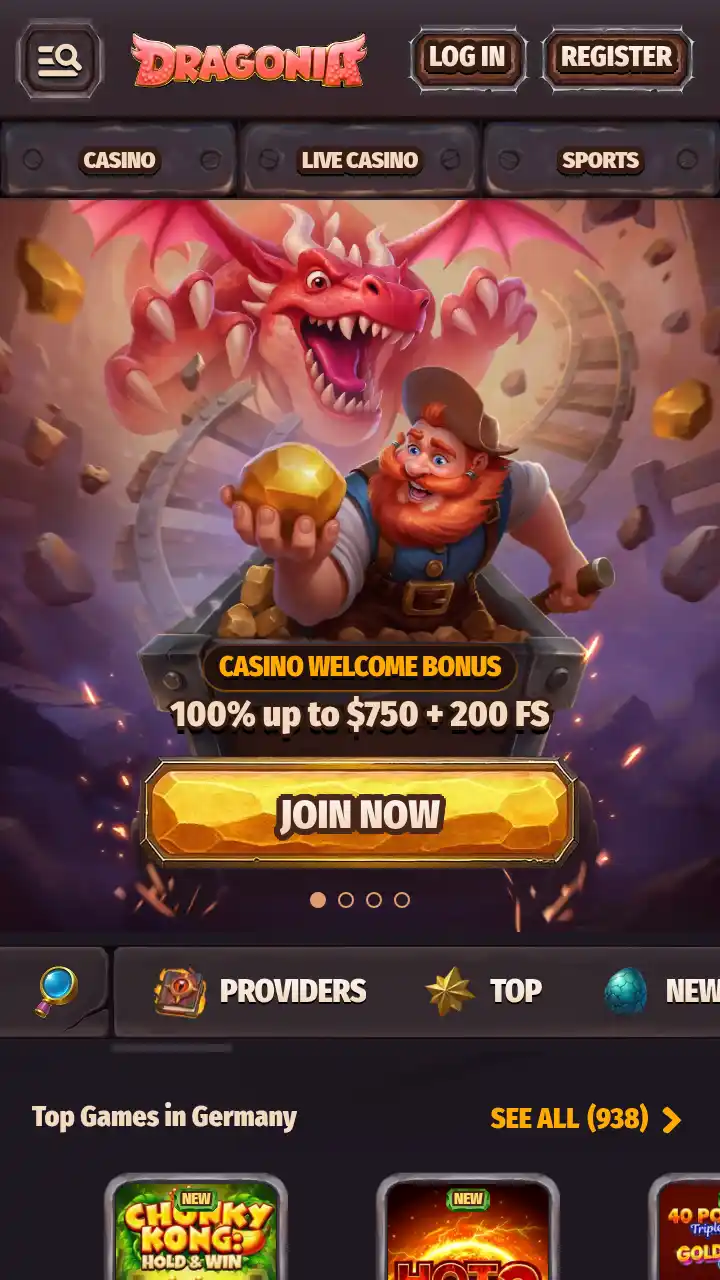
Core Features & Functionality (Sports, Casino, Live Betting & More)
The mobile site gives you the same sections as the desktop site. Open the casino for slots and other games. Join Live Casino tables, where real dealers appear on a video stream. Browse pre-match and live betting lines, then build your slip in a few taps. Live Betting covers markets during an event. It does not mean live video of the match. Regular casino and sportsbook promotions are available in the mobile site too. Live Chat runs 24/7, and support@dragonia.com handles email requests. Challenges, Tournaments and the Shop appear in the menu.
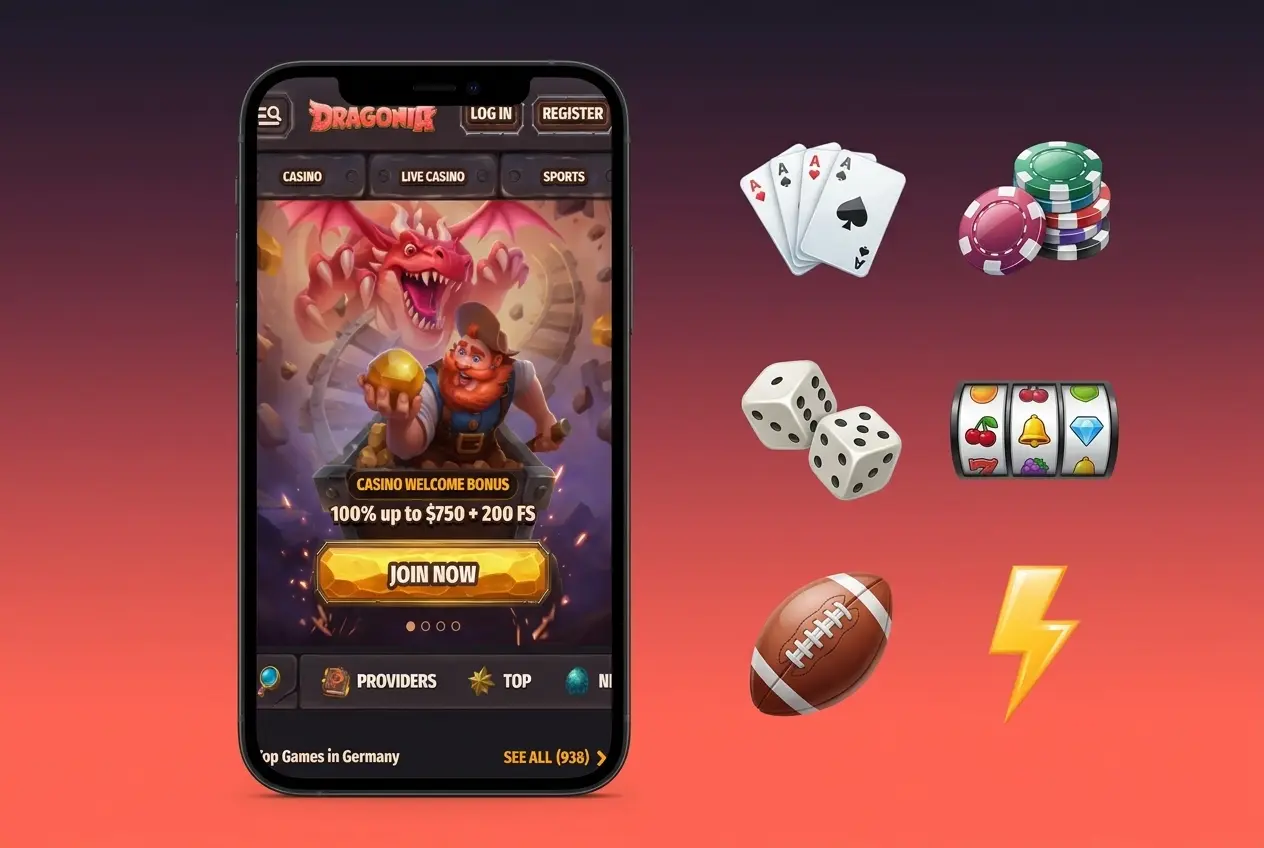
Interface, Navigation & Ease of Use
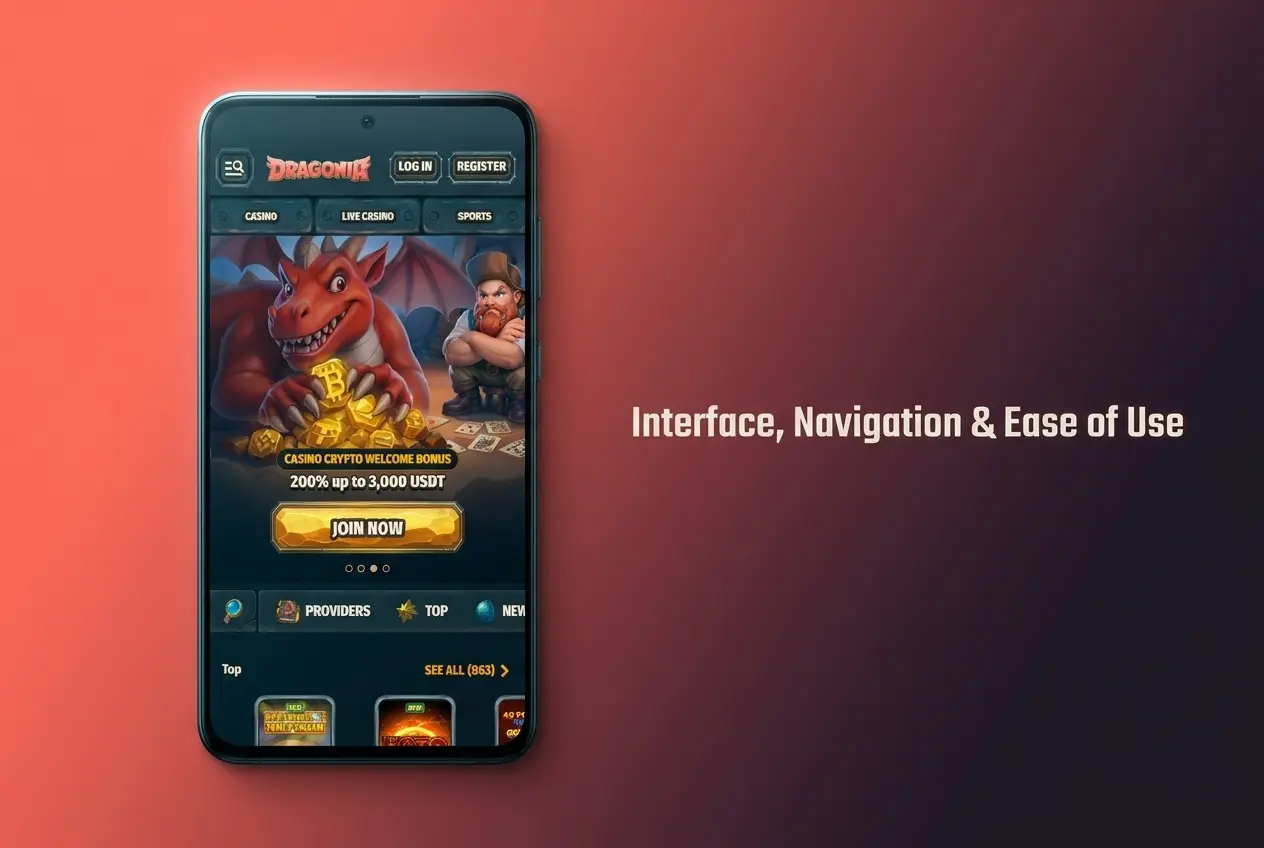
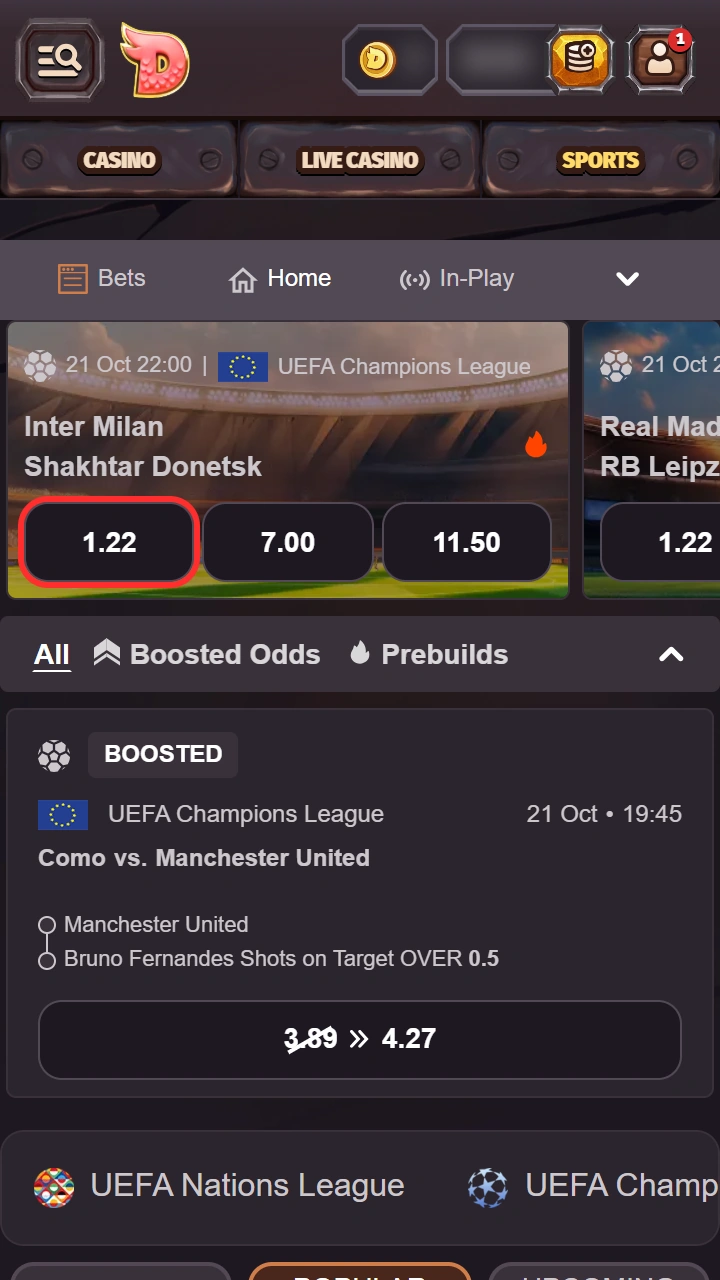
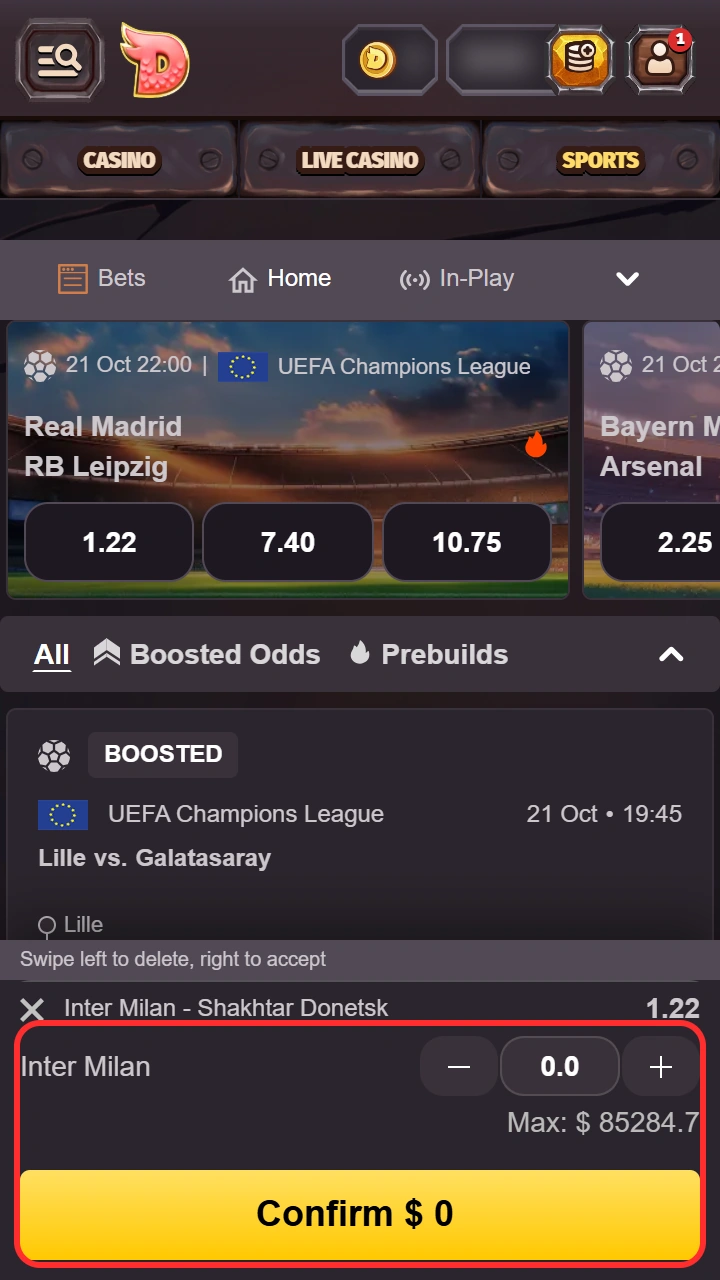
The layout is simple. The main menu splits the site into Casino, Live Casino and Sports. Promotions and your account sit close by. In the casino, filters and category tabs narrow the lobby quickly. You can also search by game name or provider. In sports, tap any odds to add them to the bet slip. Review your stake before you confirm. Tap targets are large, so you can browse and bet one-handed.
Home-Screen Shortcut vs. Browser Tab: Which One Should You Use?
Both options open the same mobile site. The shortcut gives you a one-tap icon and a full-screen view without the address bar. A browser tab keeps the address bar visible. That helps you check the web address at any time. Neither option installs a program, so neither saves data or speeds up the games. Speed depends on your connection and phone. Use the shortcut for quick access. Use a tab if you prefer to see the address.
| Feature | Home-screen shortcut | Browser tab |
|---|---|---|
| Access | One tap from the home screen | Open the browser, then the site |
| Screen | Full screen, fewer browser bars | Address bar and tabs visible |
| Address check | Harder to see the web address | Easy to check in the address bar |
| Storage | No app install needed | No app install needed |
| Features | Same as the mobile site | Same as the mobile site |
How to Get the Dragonia App on Your Home Screen
Getting the Dragonia app on your phone takes a minute. You do not download a file. You add the mobile site as a shortcut, and it costs nothing. You need a phone, a data connection and an account. Pick your device below and follow the steps. Players in Canada must be 18+ and in a region where play is allowed.
Android (Chrome Shortcut)
On Android, use Chrome. Open the mobile site, then add it to your home screen from the browser menu. No APK file is involved. No official Dragonia APK exists, and you should not install one.
Where to Open It: Safety Note
Open the site only through the links on this page. Do not use third-party sources, forums or file-sharing links. Beware of any file or app that claims to be Dragonia. It can hide phishing pages or malware. No official Dragonia APK exists, and no verified store app exists for Canada. If a page asks you to download a file, close it.
Step-by-Step Home Screen Guide for Android
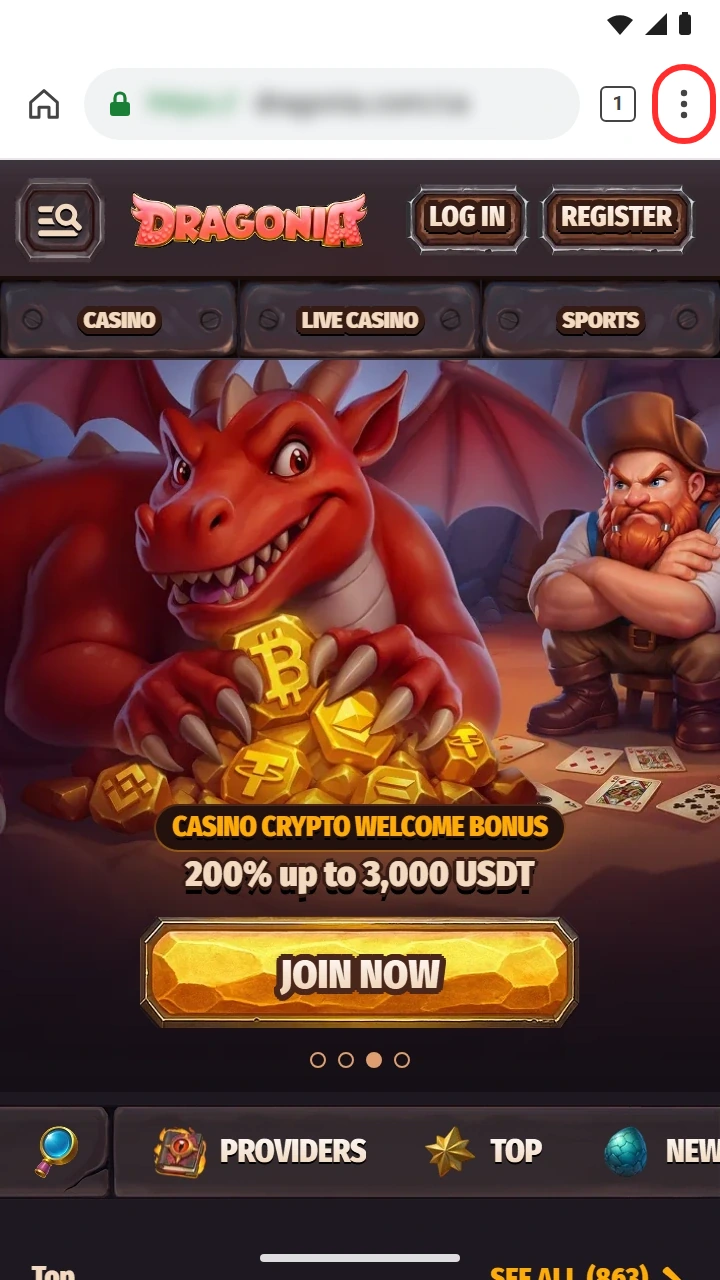
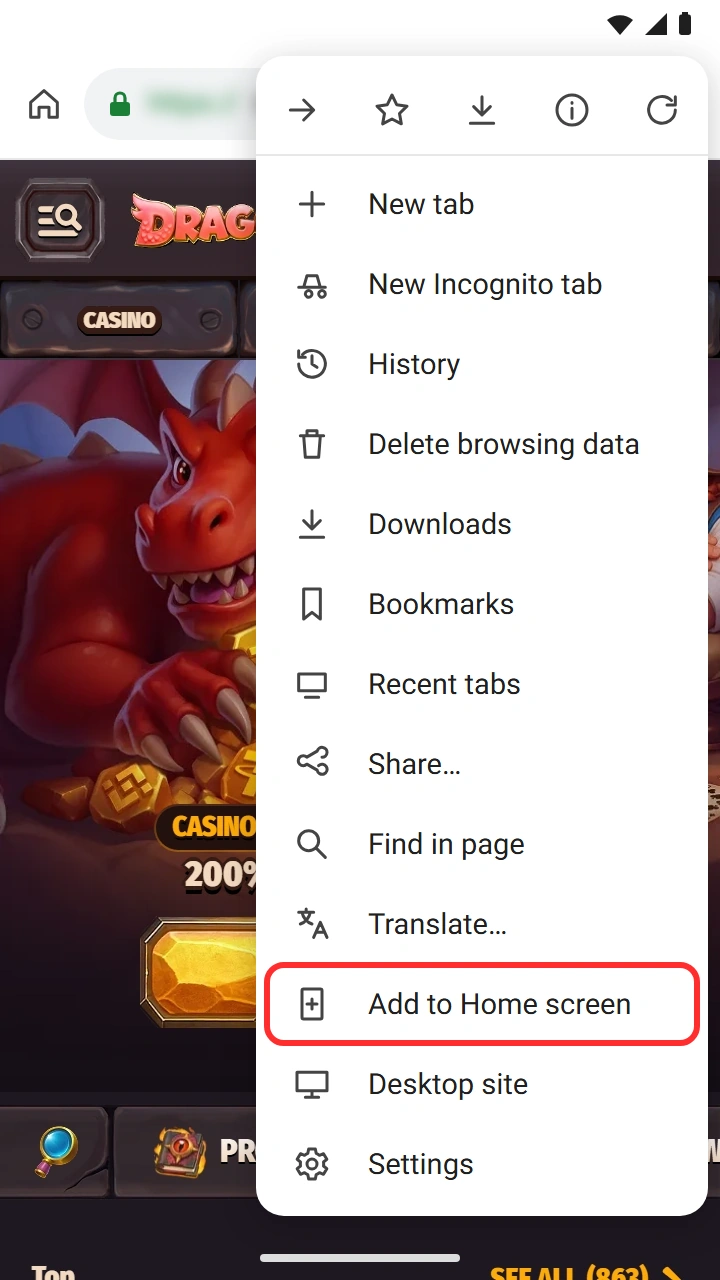
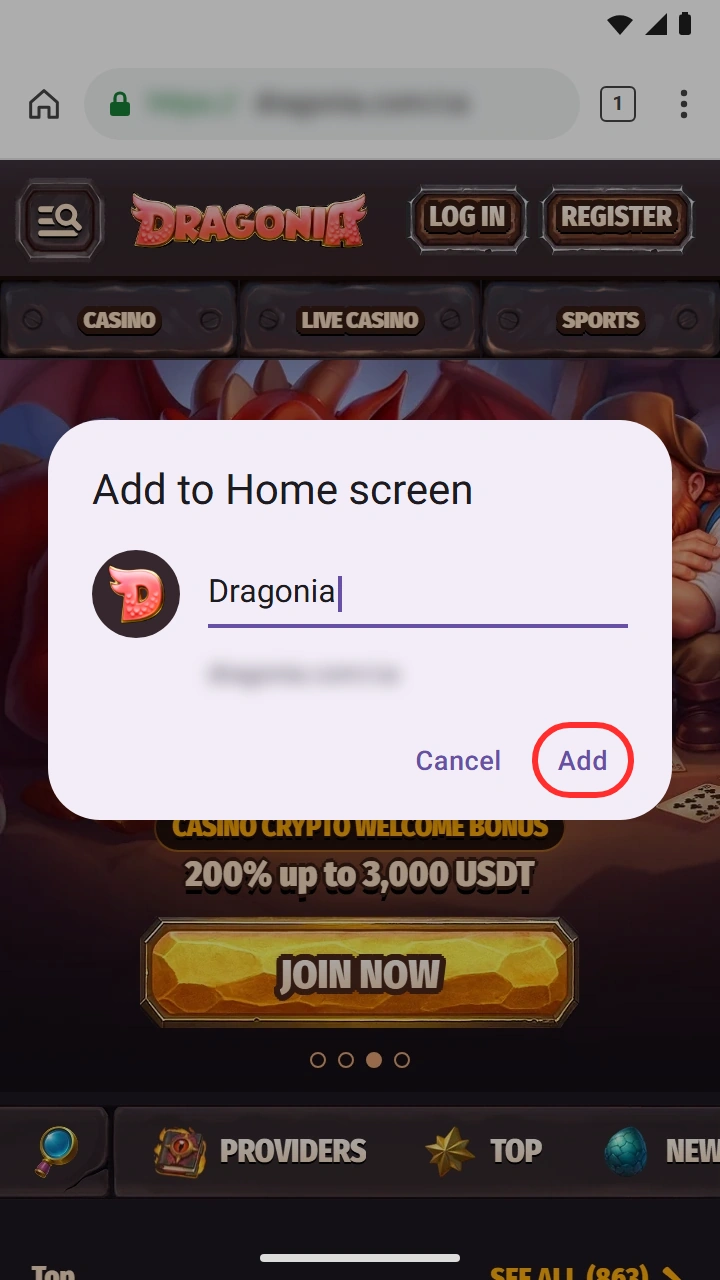
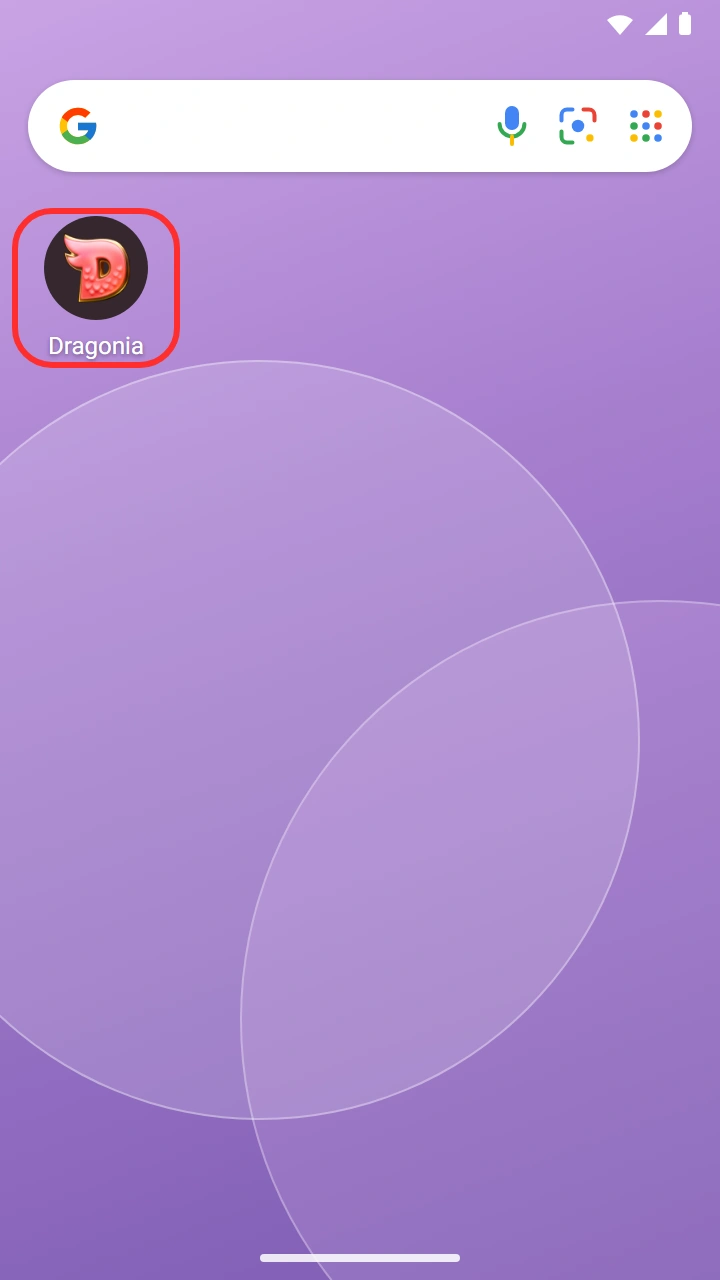
Adding the Dragonia shortcut on an Android phone takes about two minutes. Follow the five steps below in order.
- Open the mobile siteTap the Open Mobile Site button below on this page. The site opens in your phone browser. Chrome gives the best match for these steps.
- Open the Chrome menuTap the three dots in the top corner of Chrome.
- Choose Add to Home screenPick Add to Home screen from the menu.
- Confirm with AddCheck the shortcut name and tap Add.
- Open it from the home screenFind the new icon and tap it. The site opens full screen. Log in or register to start playing.
Browser Requirements & Compatible Android Devices
Most current phones and tablets run the mobile site well. The site needs no storage for an app. These are general guidelines, not a guarantee for every device.
| Parameter | What you need |
|---|---|
| Browser | A current version of Chrome (or Edge), kept updated |
| Connection | Stable mobile data or Wi-Fi |
| Browser settings | JavaScript and cookies enabled |
| Storage | No app install required |
| Devices | Android smartphone or tablet |
Dragonia App iOS (iPhone & iPad)
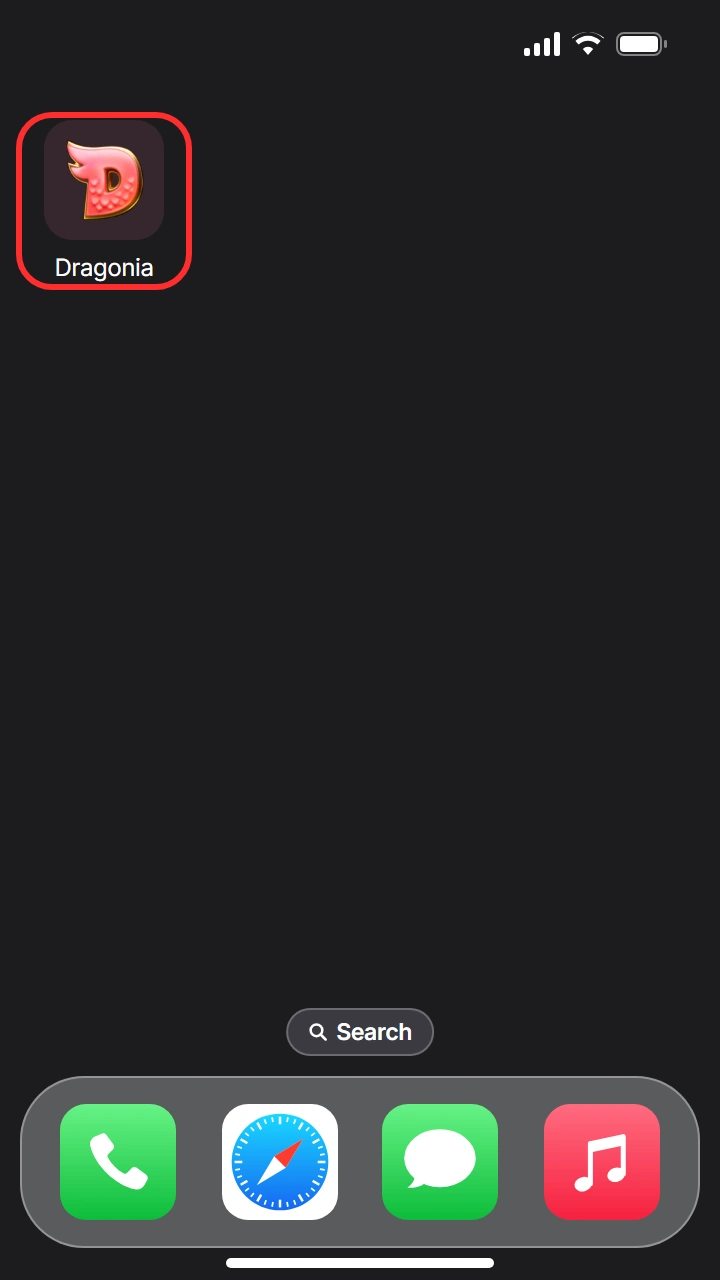
On iPhone and iPad, the Dragonia app experience is also the mobile site. Safari adds it to your home screen as a shortcut. iPad users get the same layout, scaled to the larger screen.
Where & How to Open It (Safari, No App Store)
There is no App Store app for Canada that we could verify. Open the site in Safari with the button below. Then add it to your home screen. Use only links from this page.
Step-by-Step Home Screen Guide for iOS
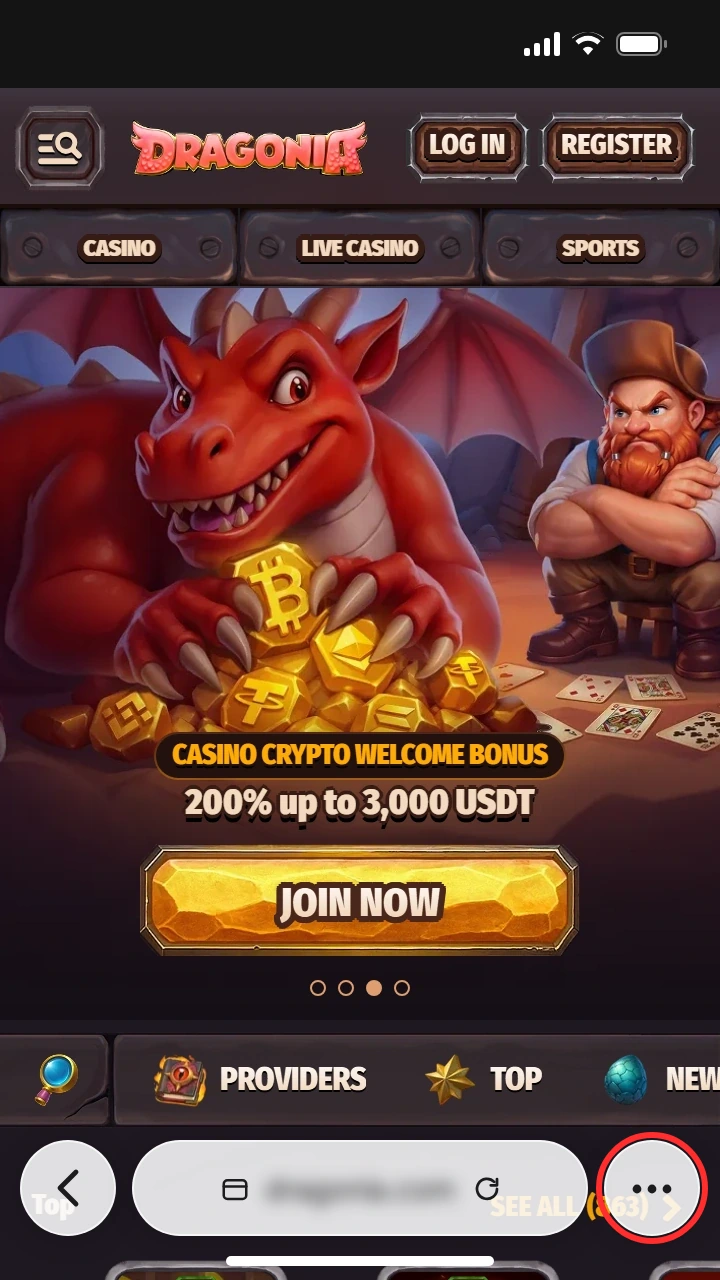
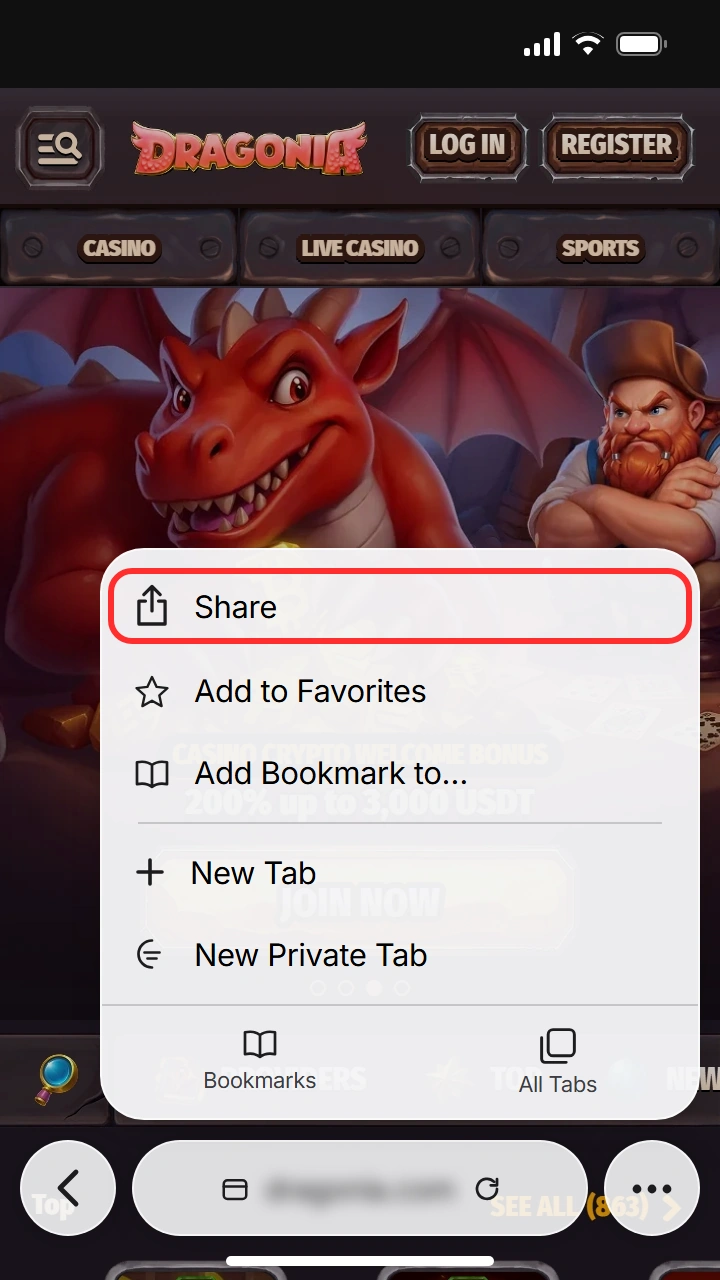
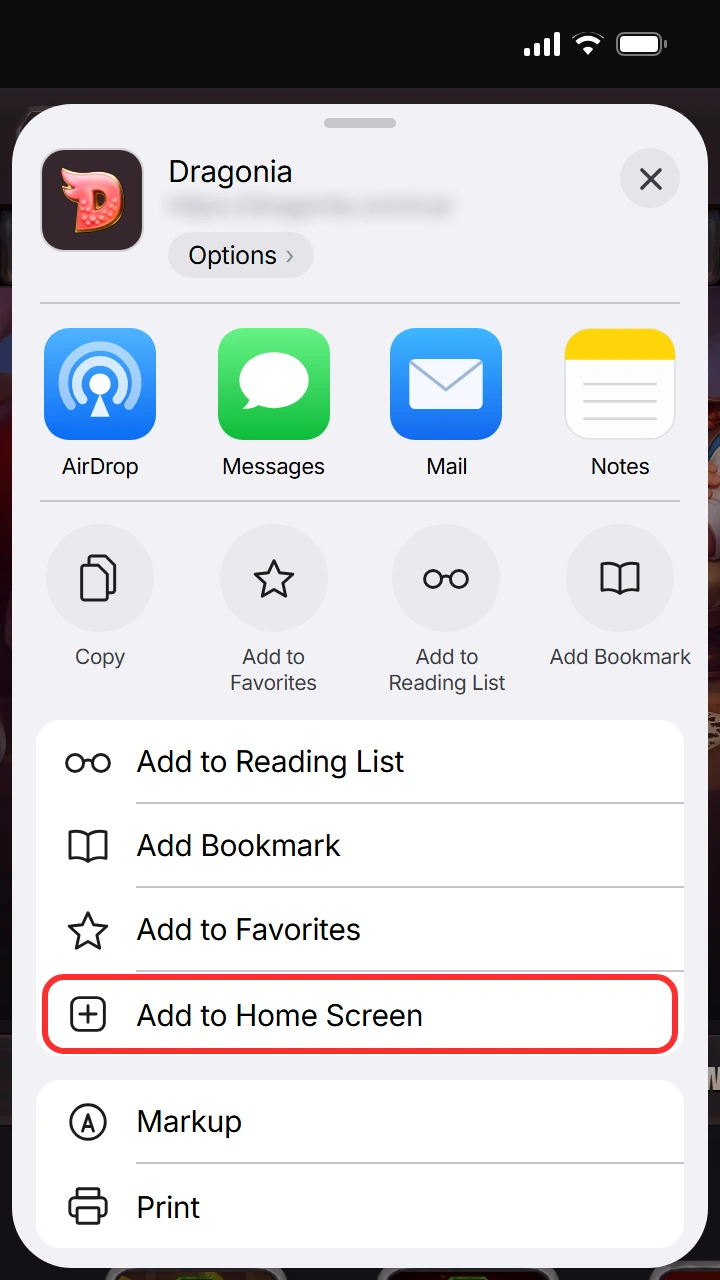
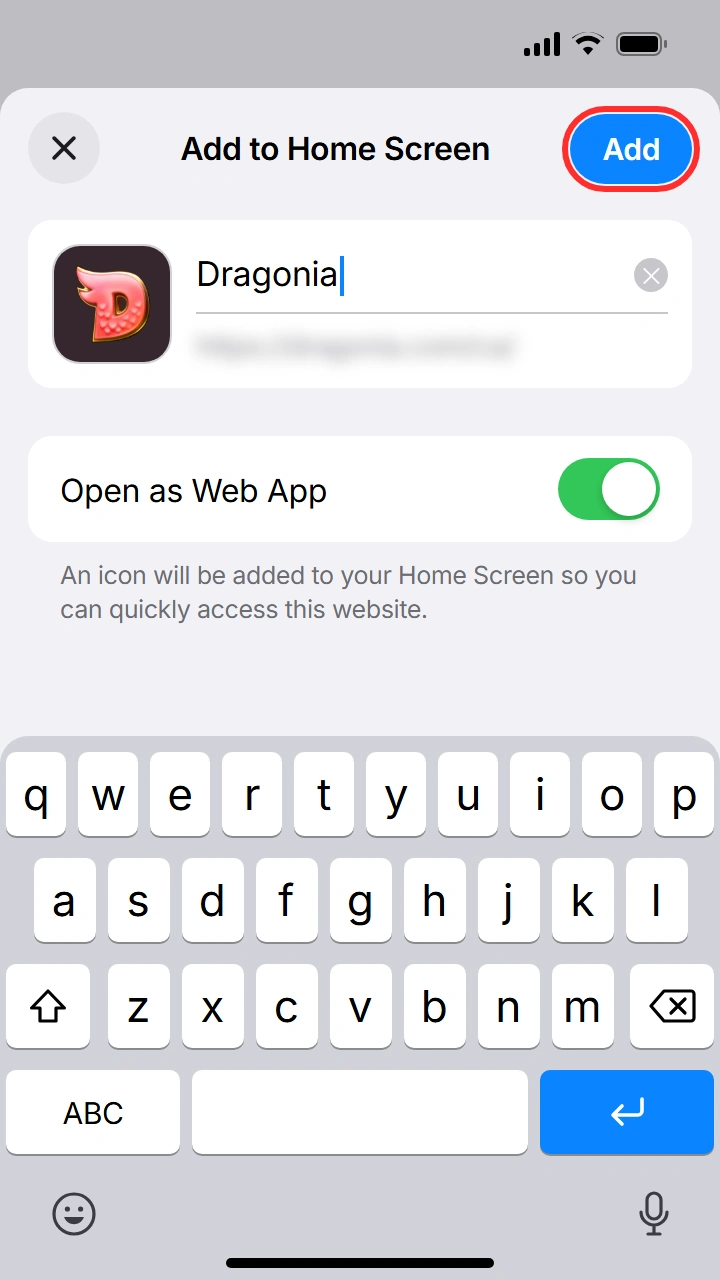
Adding the shortcut on an iPhone uses Safari and takes about a minute. Five steps are enough.
- Open the mobile siteTap the Open Mobile Site button below on this page. The page opens in Safari.
- Tap ShareTap the Share icon in Safari's toolbar.
- Choose Add to Home ScreenScroll the share sheet and pick Add to Home Screen.
- Tap AddCheck the name, then tap Add in the top corner.
- Open the shortcutOpen the new icon on your home screen, then log in or register.
Browser Requirements & Compatible iOS Devices
Recent iPhones and iPads handle the mobile site comfortably. Treat these points as guidance only.
| Parameter | What you need |
|---|---|
| Browser | A current version of Safari, kept updated |
| Connection | Stable mobile data or Wi-Fi |
| Browser settings | JavaScript and cookies enabled |
| Storage | No app install required |
| Devices | iPhone or iPad |
Dragonia on a Computer: Desktop Browser
There is no PC client and no installer. On a computer, open the site in a current version of Chrome, Safari or Edge. The same account works there as on your phone. Your balance and history follow you between devices.
Registration & Login on the Dragonia Mobile Site
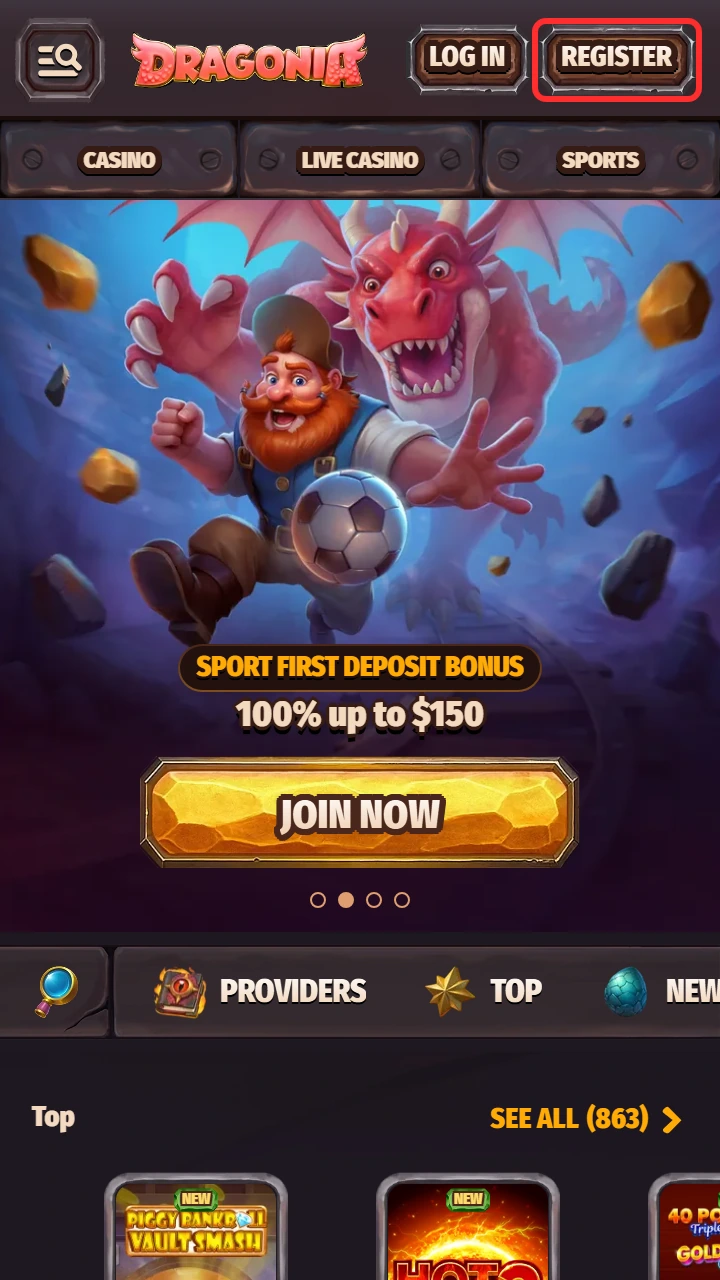
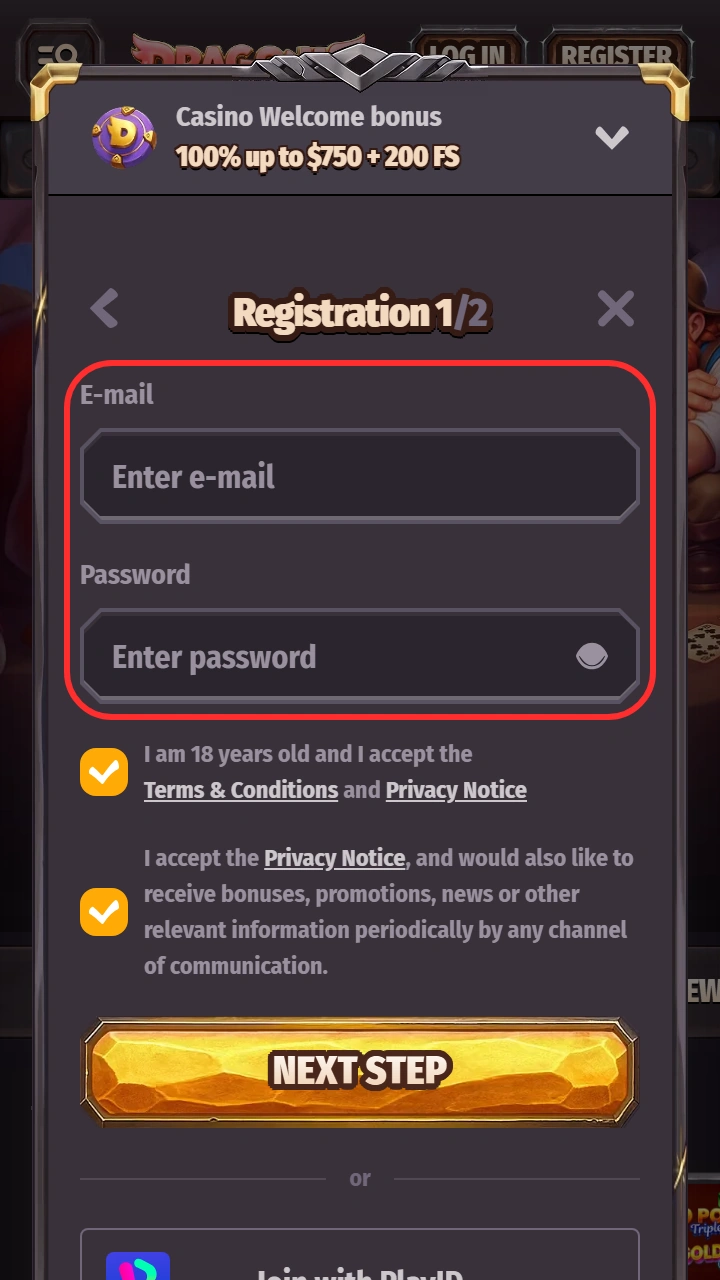
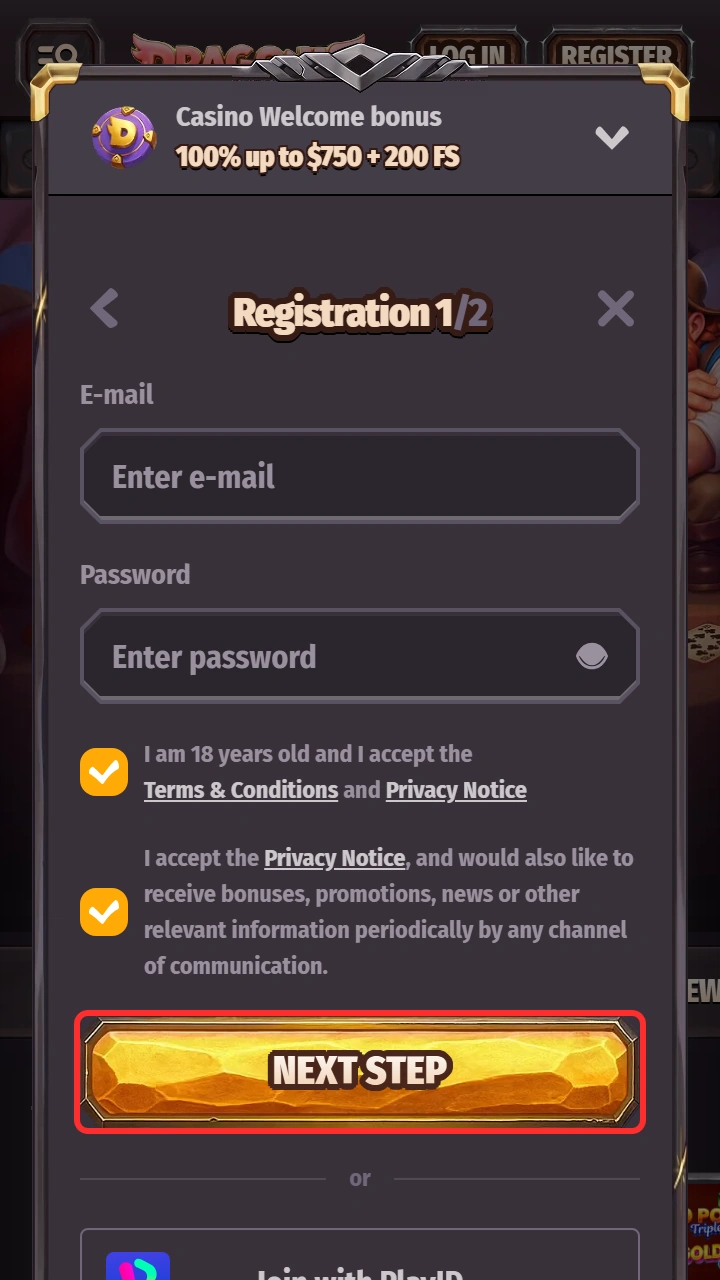
Getting started takes a few minutes. The sign-up form asks for an email and a password. A PlayID option has been reported as well. For the full walk-through, see our registration guide and login page.
How to Create an Account: Step-by-Step
Creating a new account on the mobile site takes about two minutes. You must be 18+ and live where play is allowed.
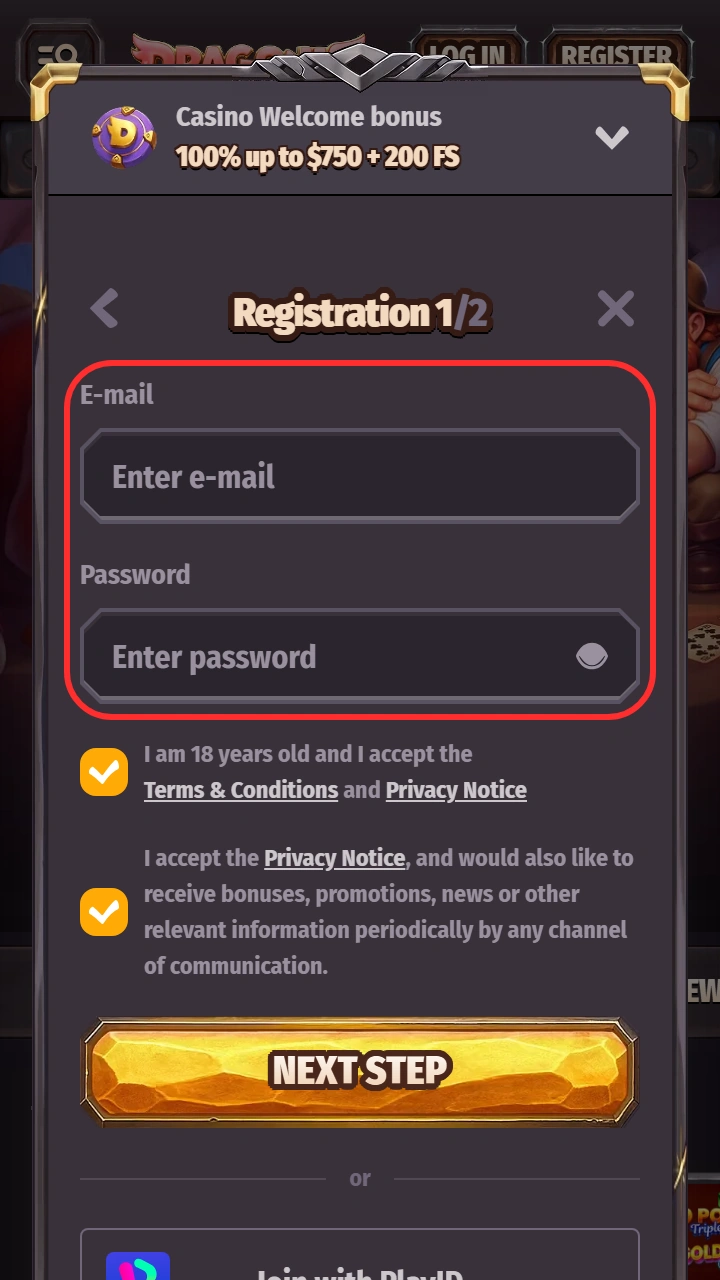
- Click the button belowPress Create an Account on this page to open the sign-up form.
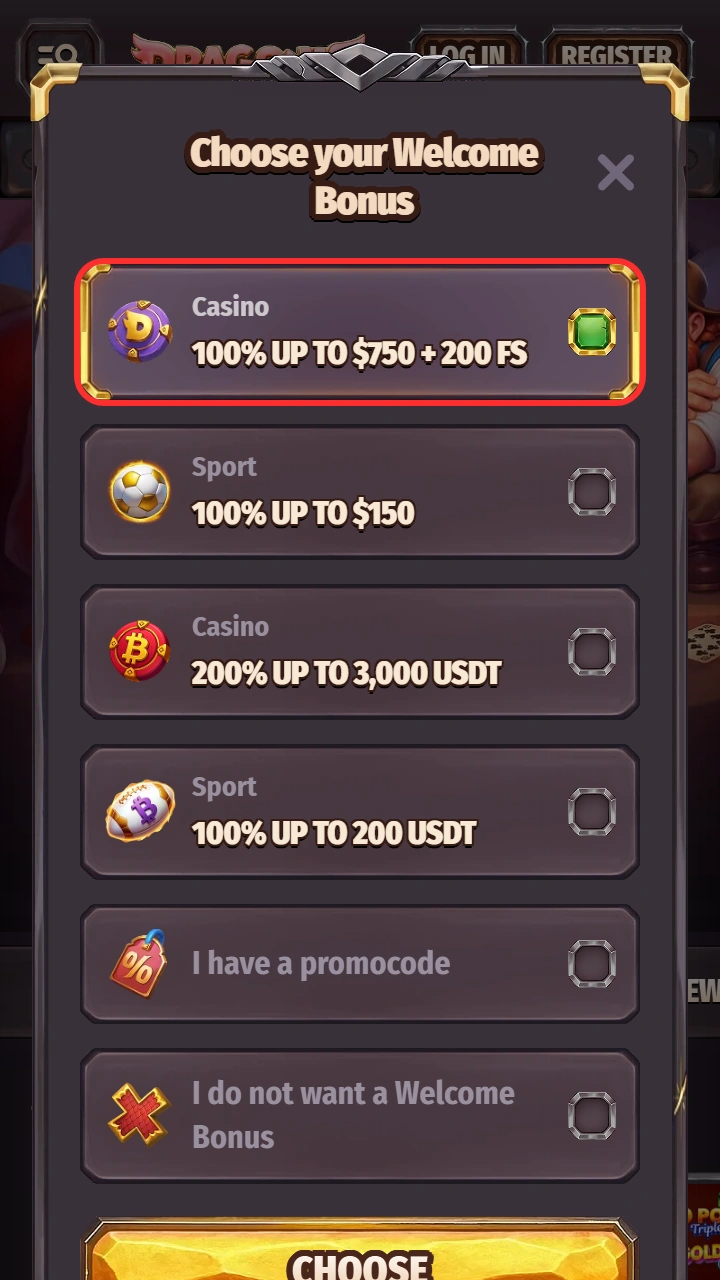
- Choose your welcome bonusPick the welcome offer or skip it. The form also has an I have a promocode option for offers that need a code.
- Fill in your detailsEnter your email and a strong, unique password. Add the other details the form asks for. Use real information so verification goes smoothly.
- Complete the formFollow any confirmation step shown on screen to finish the registration.
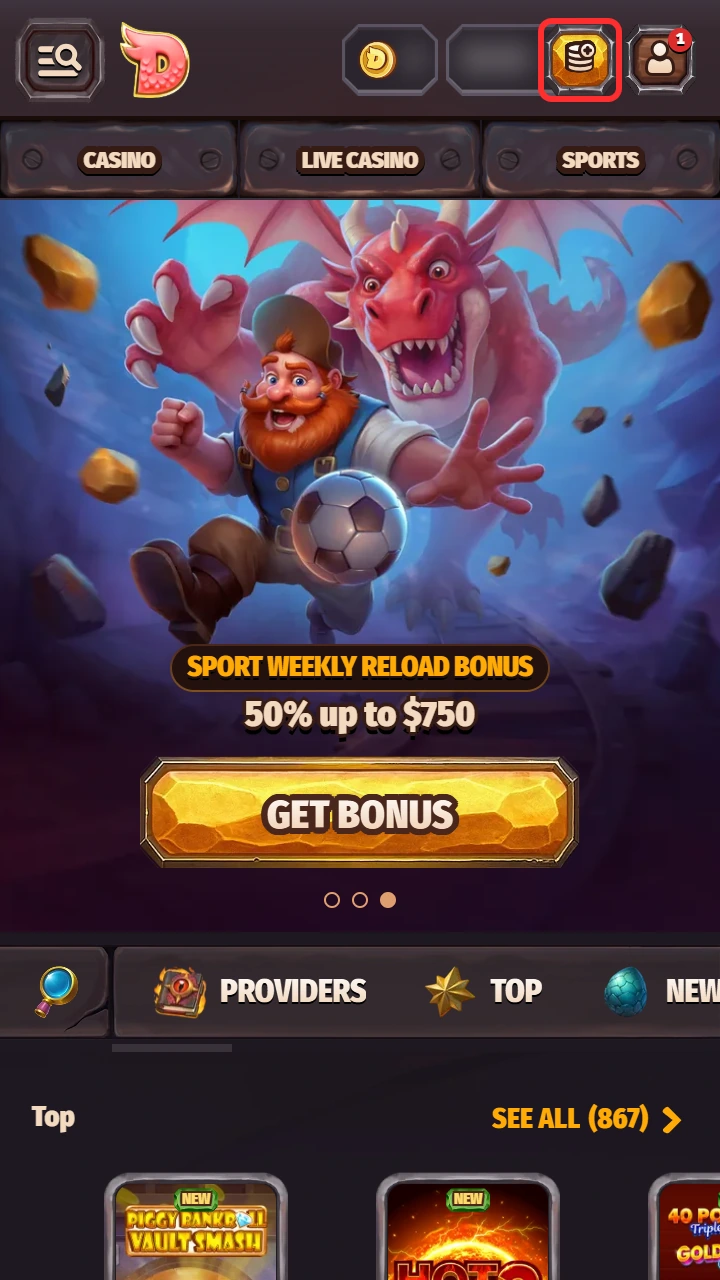
- Log in and startSign in, make a deposit if you wish and explore the lobby.
How to Log In to an Existing Account
Logging in to your existing account takes four short steps.
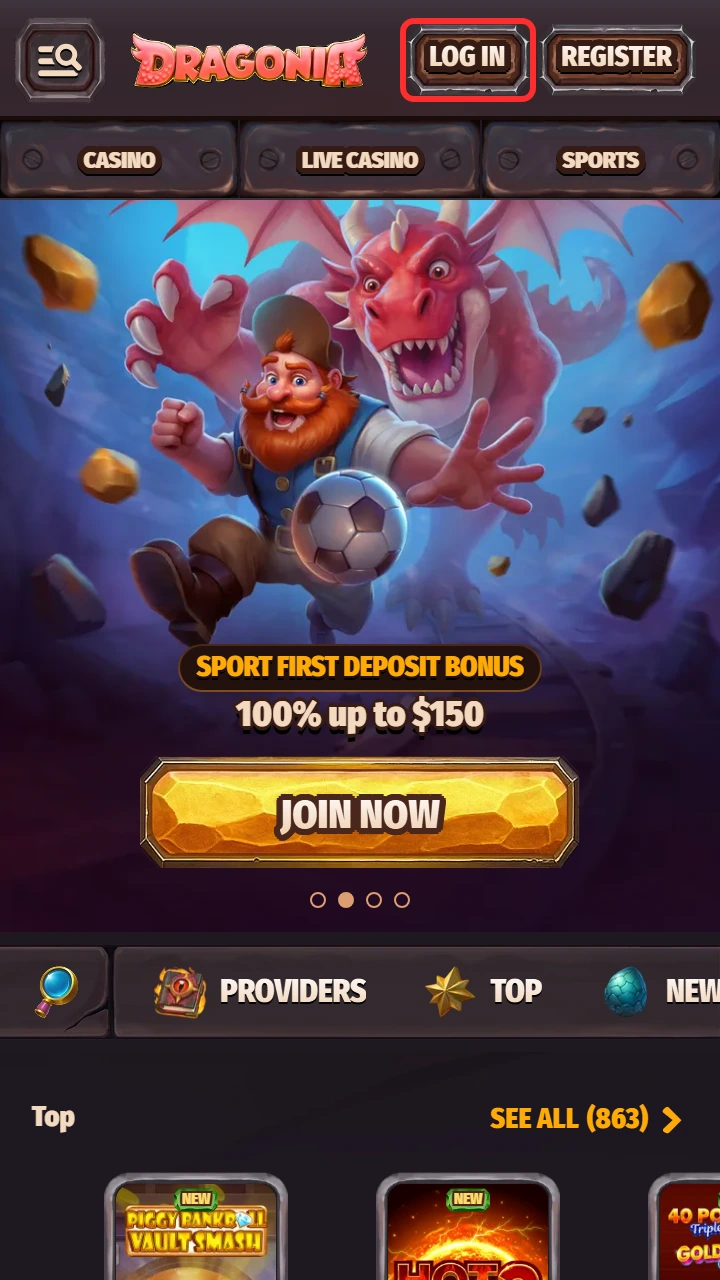
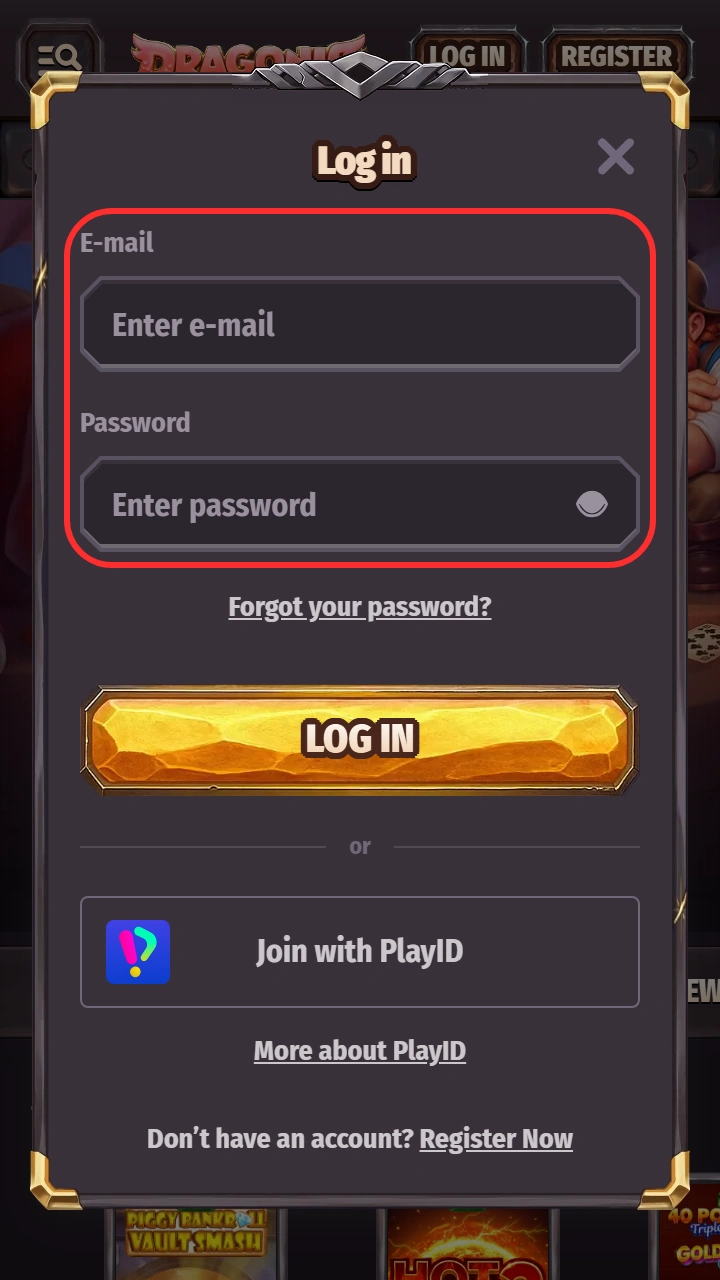
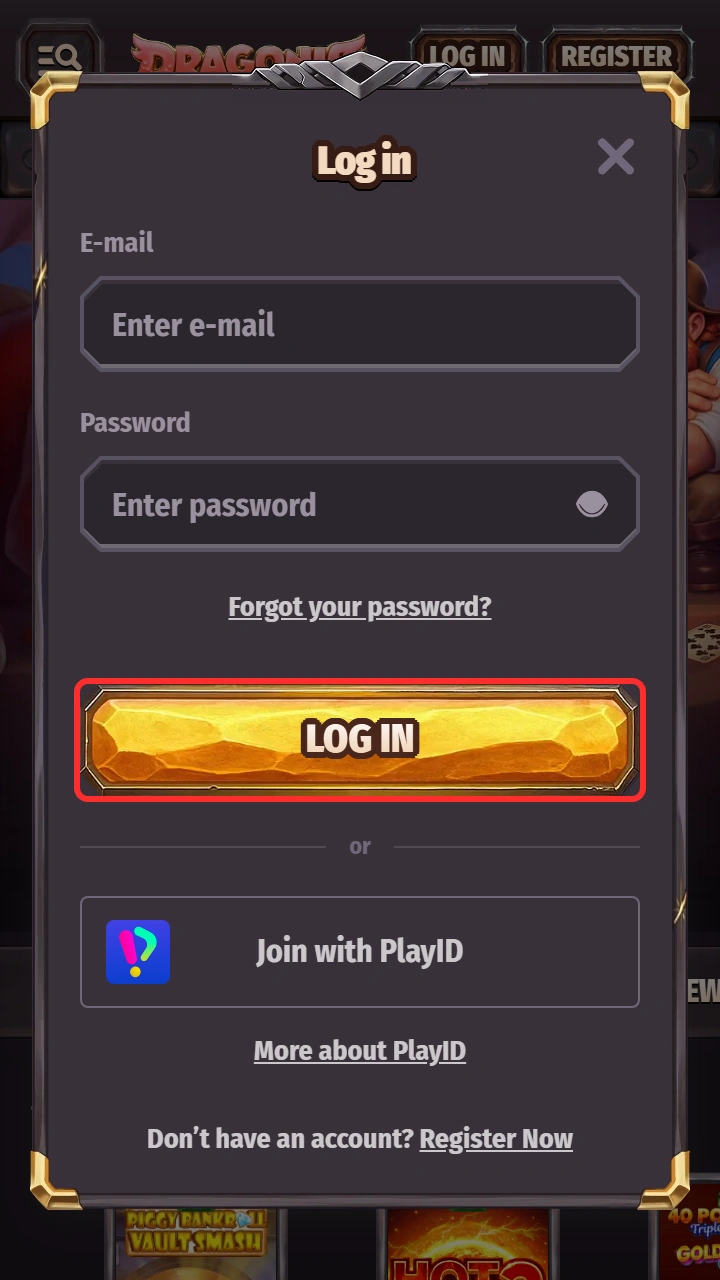
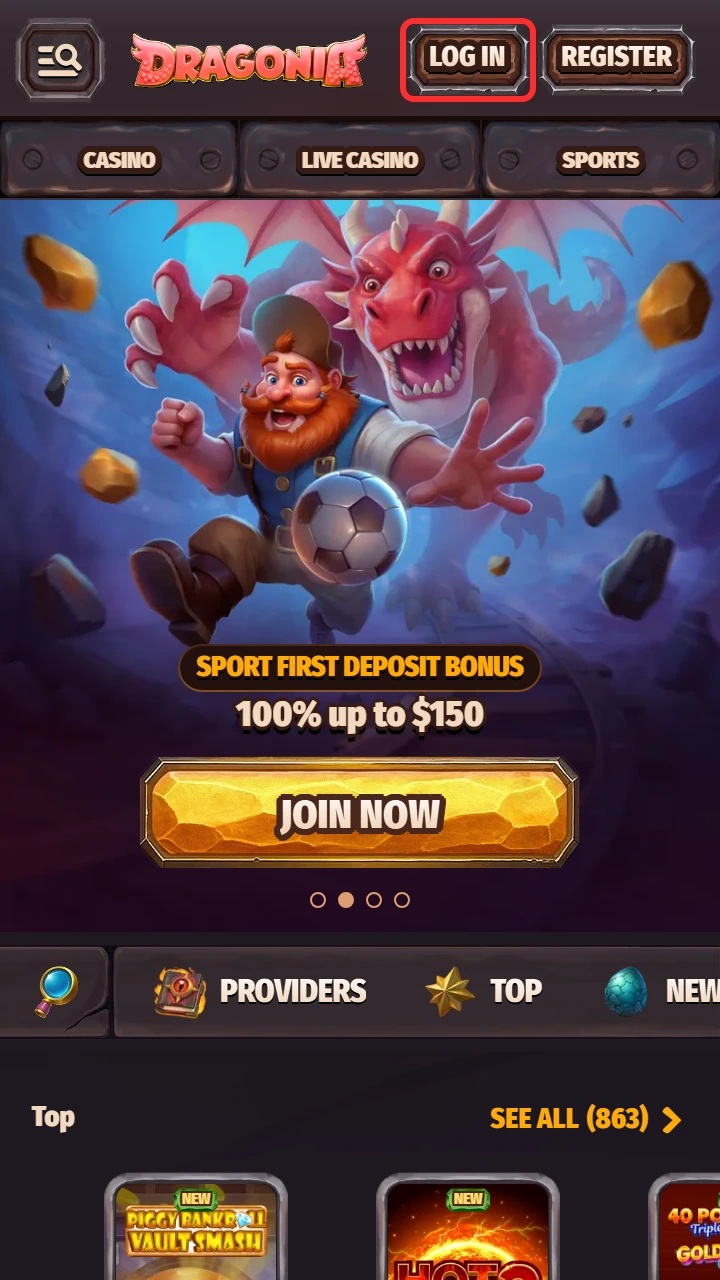
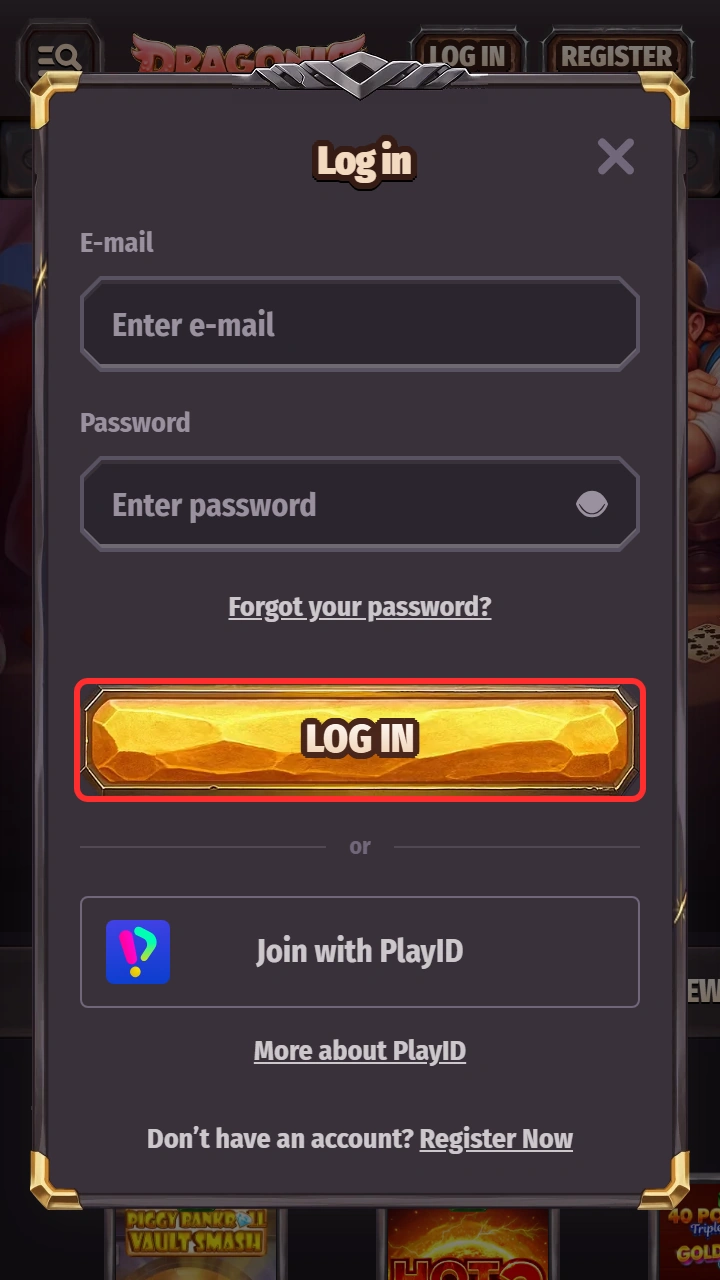
- Click the button belowPress Log In on this page to open the login form.
- Enter your credentialsType the email and password you registered with.
- Tap Sign inConfirm, and your balance and history load right away.
- Stay secureCheck the address bar, never share your password and log out on shared devices. Do not save your password on a phone you do not control.
Already registered? Players with an existing account must not create a new one. Log in instead. If you forgot your details, ask Live Chat or support@dragonia.com for help.
How to Place Bets on Dragonia Mobile
Odds update during live events, so check the slip before you confirm. The mobile site offers pre-match markets and Live Betting. Tap the odds, check the bet slip and confirm. Live Betting does not include live video of the event. Set a stake limit before you start, and bet only what you can afford to lose.
Step-by-Step Betting Guide
Placing a bet on mobile takes a handful of taps. Here is the path from account to bet slip.
- Create or open your accountClick the Place a Bet button below, then register or log in.
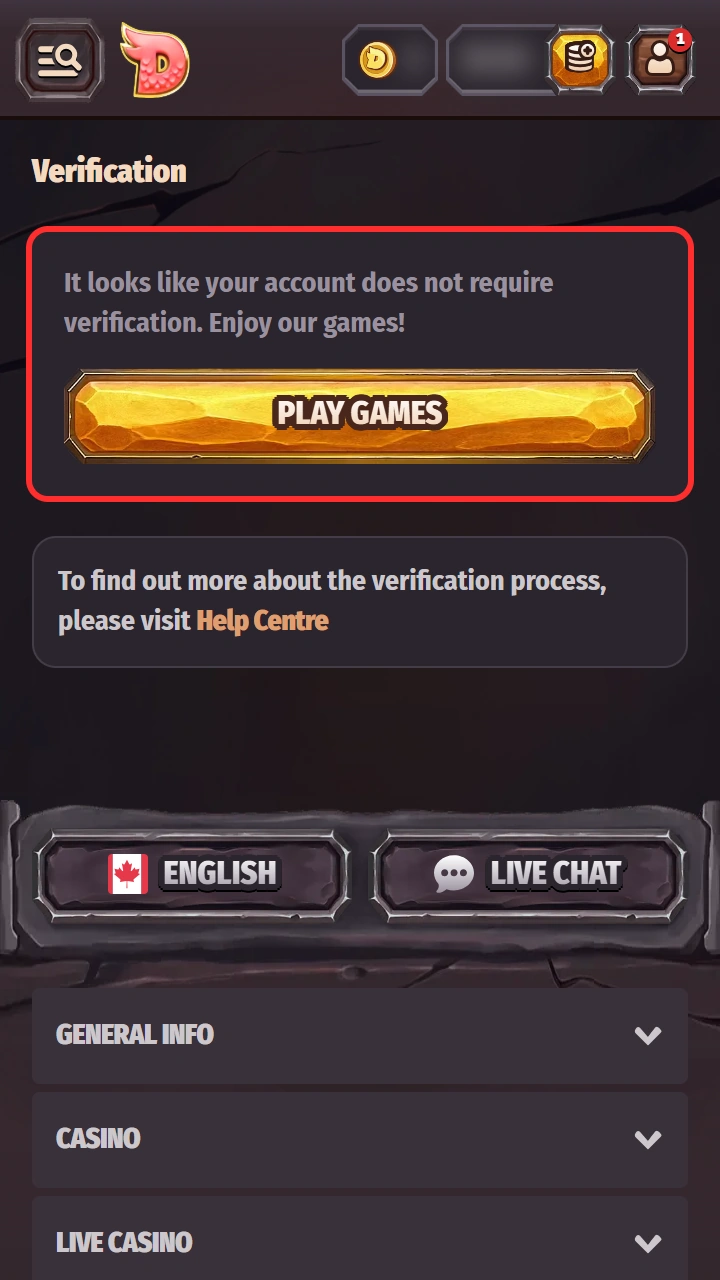
- Verify your identityComplete any verification request so payouts are not delayed later.
- Make your first depositOpen the cashier, choose a method and add funds within your budget.
- Select an eventOpen Sports, pick a pre-match or live event and tap the odds you want.
- Place the betEnter your stake in the bet slip, check the potential return and confirm.
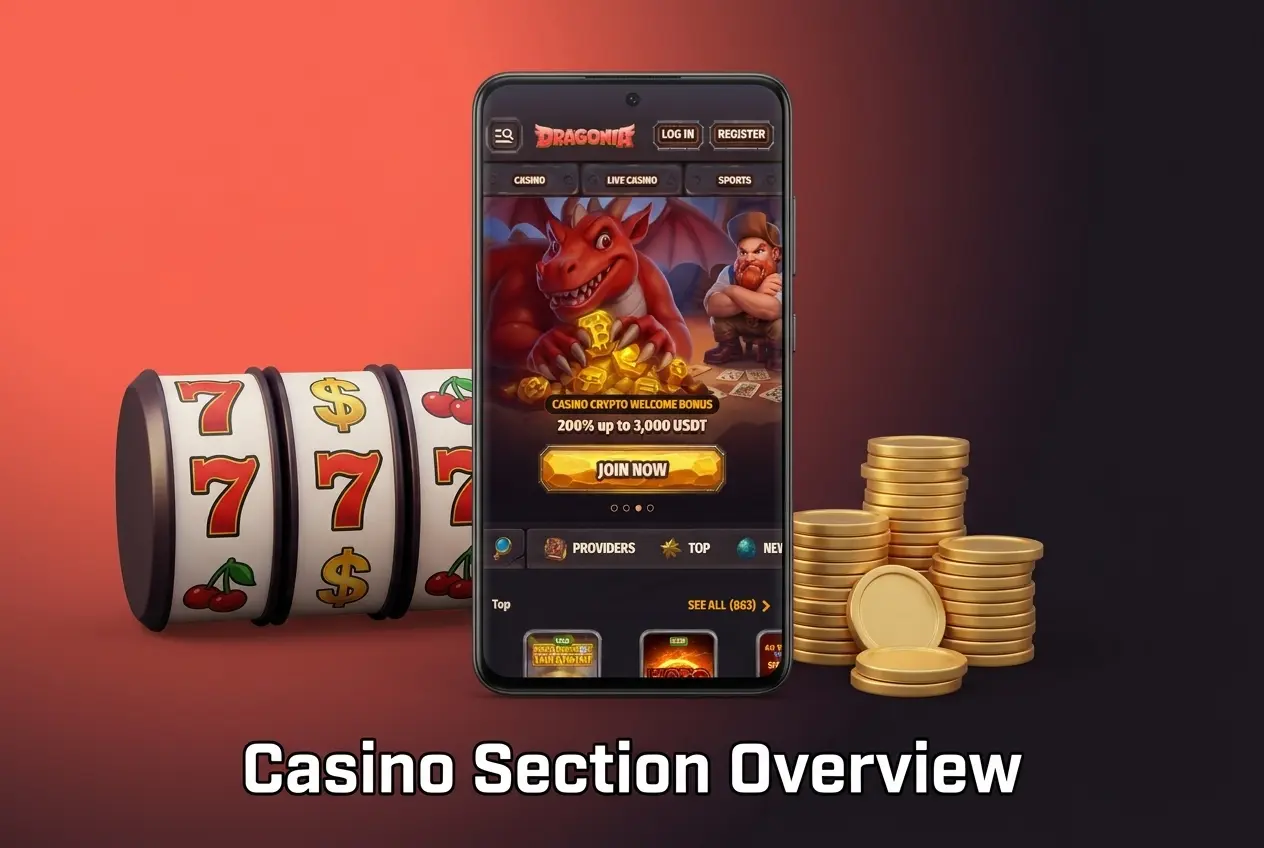
Casino Section Overview on the Dragonia Mobile Site
Most players now game on their smartphones, and many providers build their slots and live titles for mobile browsers. That means a touchscreen-friendly lobby with tiles you can tap and swipe.
Games Available on the Dragonia Mobile Site
The casino lobby covers the main game types, from fast slots to live dealer tables. Availability can differ by region and provider.
- Slots: classic and video slots with a wide range of themes and features.
- Jackpots: games where a big prize can land on a spin, where offered.
- Bonus buys: slots that let you pay to jump straight into the bonus round, where offered.
- Megaways: slots with changing reel layouts and thousands of ways to win.
- Instant games: quick-result titles, including crash-style games where offered.
- Live roulette and blackjack: real dealers on a live video stream.
- Baccarat and poker: live tables for card fans, where offered.
- Game shows: live wheel and quiz-style shows with a presenter, where offered.
Payment Methods
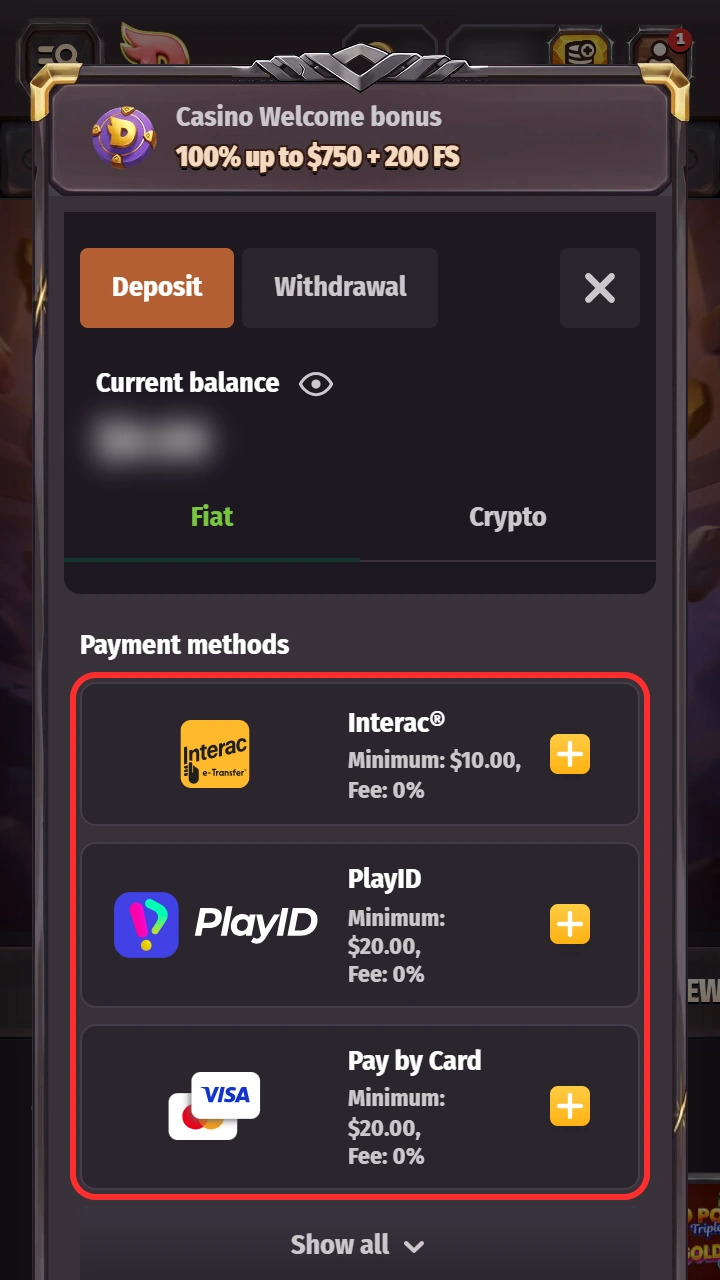
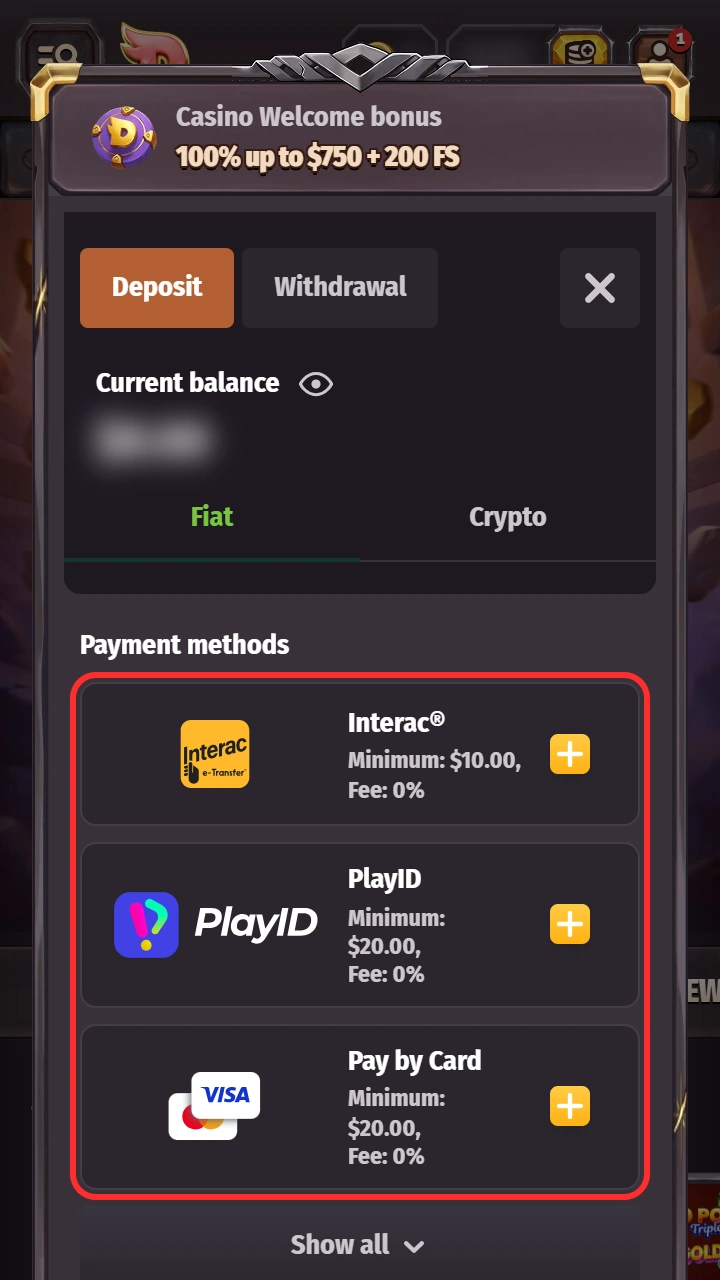
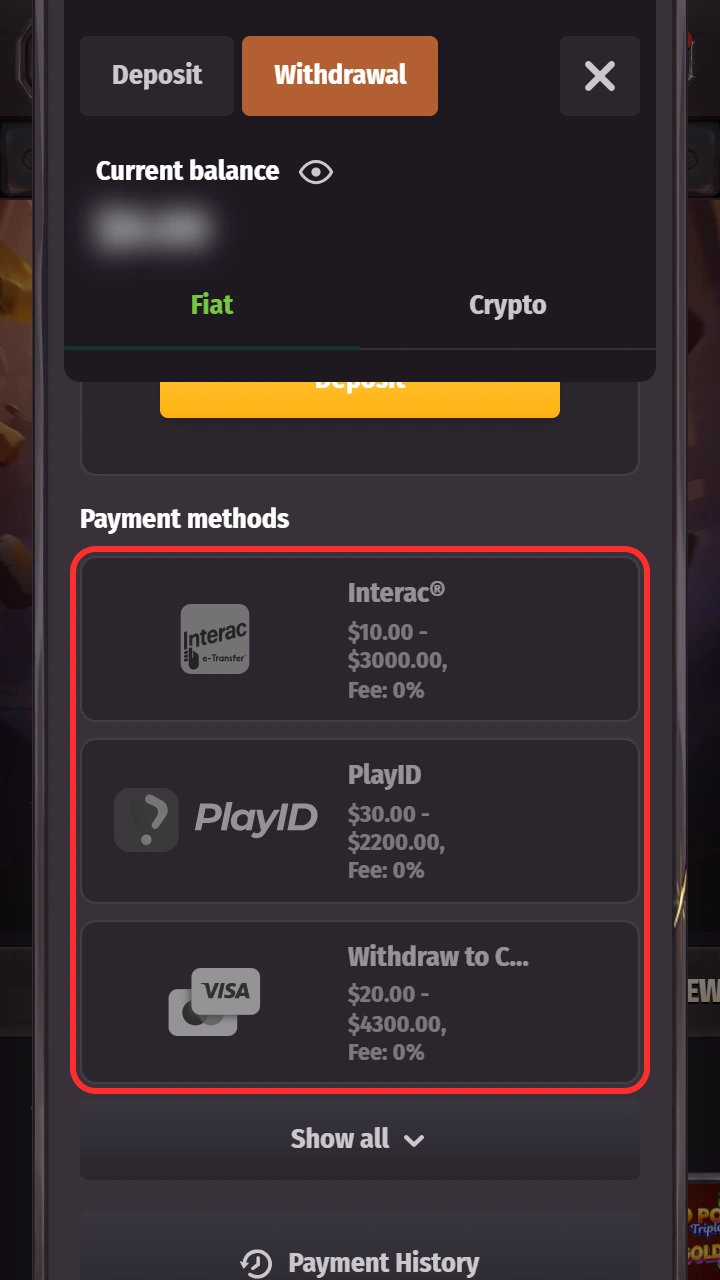
Payments on mobile run through the same cashier as on the desktop site. Players in Canada see the methods available to their account there. The limits below come from a reviewed Canadian cashier in CAD. They may vary by account and provider. The cashier shows any fee before you confirm. The payment provider may charge its own fee. Our payments page explains the process in more detail.
| Method | Deposit (min - max) | Withdrawal (min - max) | Notes |
|---|---|---|---|
| Interac e-Transfer | C$10 - C$9,000 | C$10 - C$3,000 | Online banking |
| Bank cards | C$20 - C$4,000 | C$20 - C$4,300 | Card payments |
| PlayID | C$20 - C$4,000 | C$30 - C$2,200 | Also reported as a sign-up option |
| MiFinity | C$20 - C$3,750 | C$20 - C$3,750 | E-wallet |
| Skrill and bank transfer | Not listed | C$20 - C$7,800 each | Withdrawal only |
| Bitcoin (BTC) | C$45 - C$10,000 | C$90 - C$10,000 | Cryptocurrency |
| Dogecoin (DOGE) | C$20 - C$7,800 | C$35 - C$8,000 | Cryptocurrency |
| USDT, ETH, LTC, USDC, BNB, SOL, ADA, TRX, BCH | C$20 - C$8,000 each | C$35 - C$8,000 | Cryptocurrency |
Withdrawal requests are handled within 3 business days, and verification can extend that time. After approval, the payment provider may credit the money later. Finance team hours are Monday to Friday, 06:00 to 17:00 GMT. You can have up to 3 pending requests at once. Your VIP level also sets daily and monthly withdrawal caps. The cashier may show more options than this list.
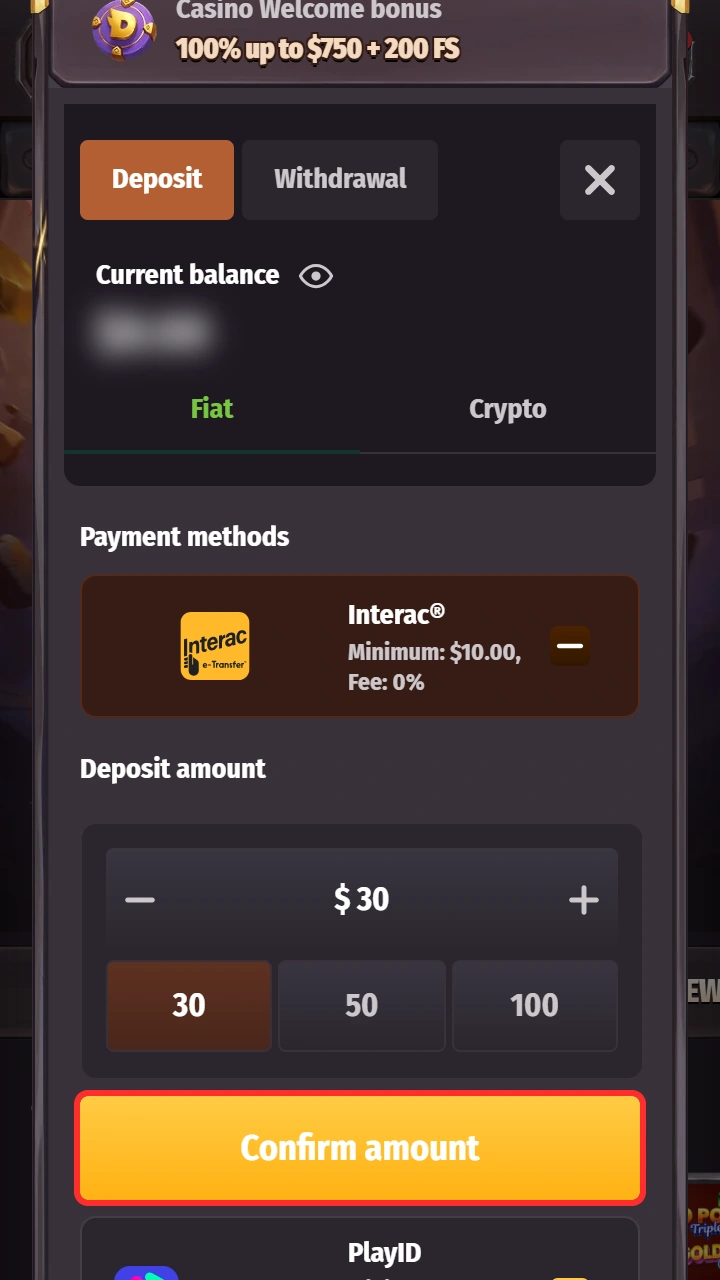
How to Make a Deposit via the Dragonia App (Mobile Site)
Depositing on the mobile site takes under a minute once your account is ready. Set a deposit limit that fits your budget first. Remember that the welcome bonus needs a deposit of at least C$30.
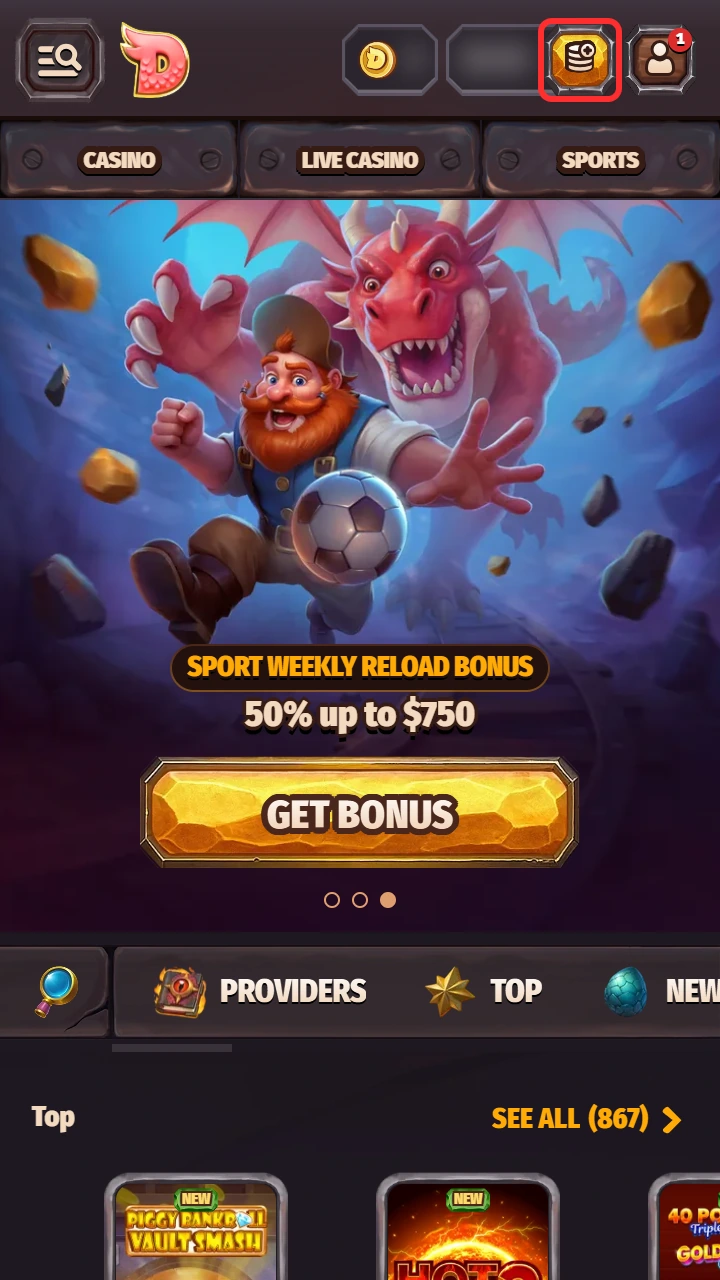
- Click the button belowPress Deposit on Mobile on this page, then log in to your account.
- Go to the cashierTap the balance or Deposit button to open the cashier.
- Select a payment methodChoose from the methods shown for your account.
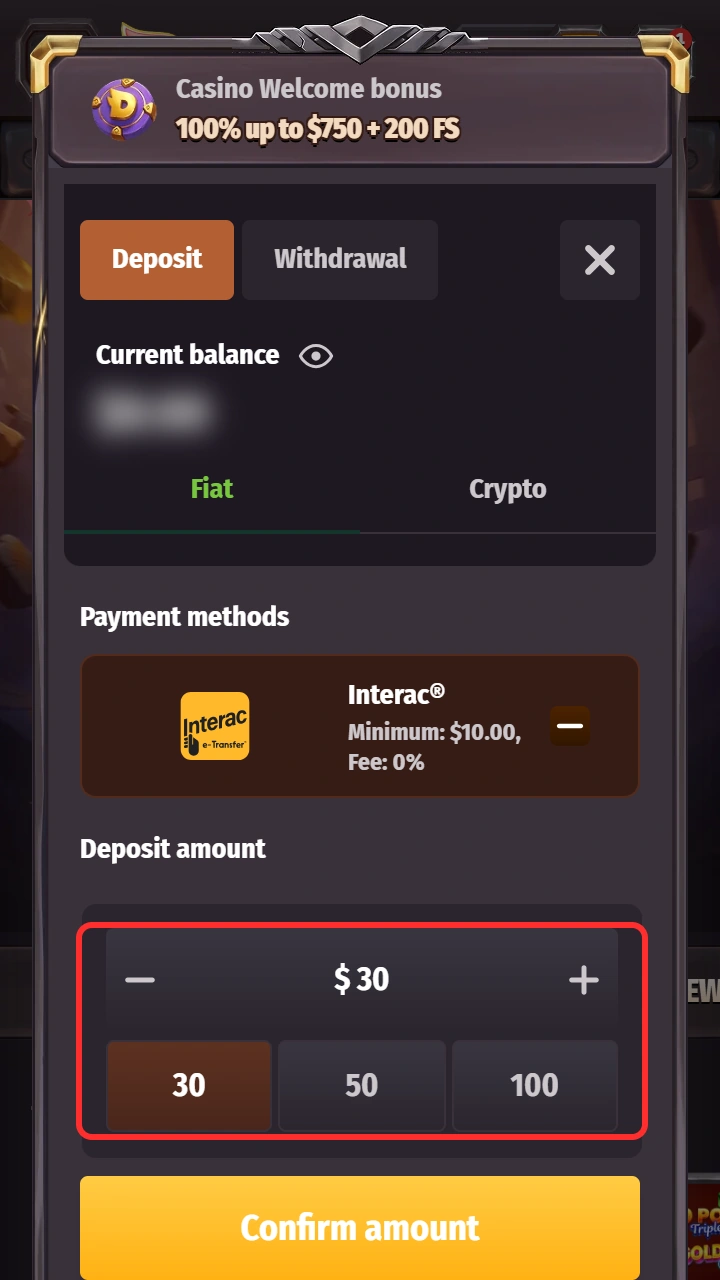
- Enter the amountType your deposit in CAD. Check the minimum for that method.
- Confirm the transactionReview the details and any fee shown, confirm and wait for the balance to update.
How to Withdraw Funds
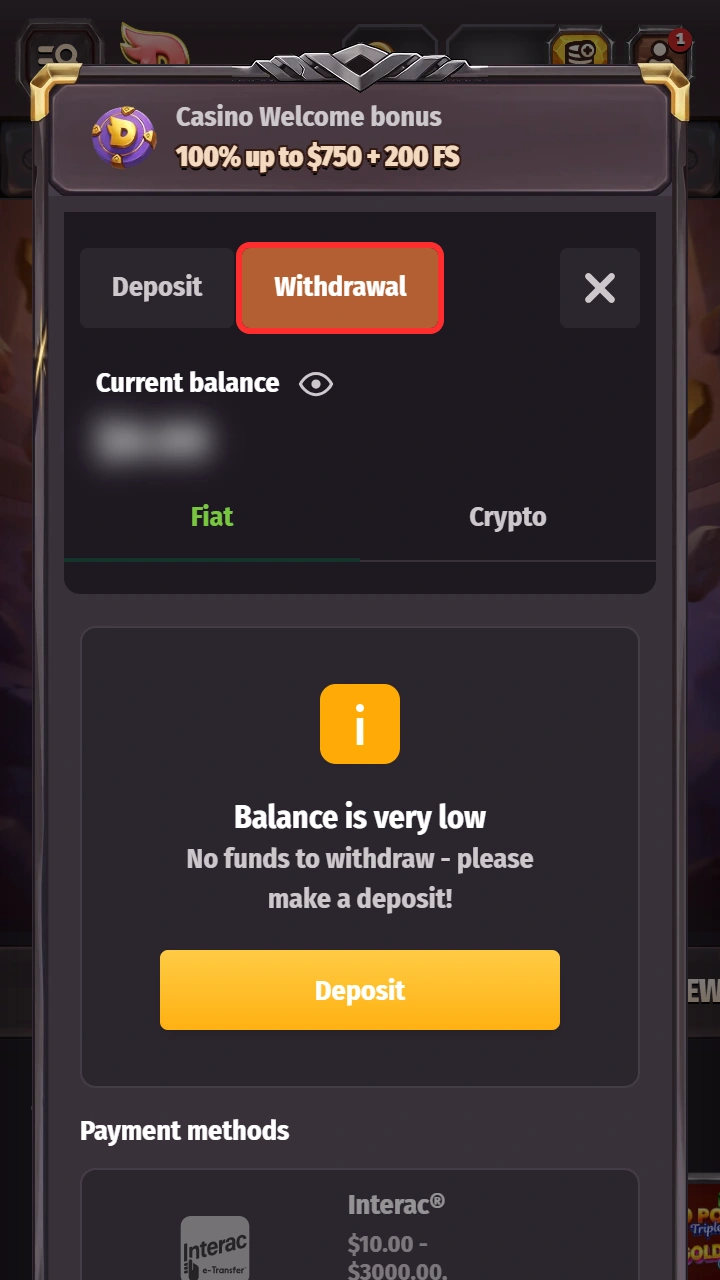
Withdrawing on mobile uses the same cashier as deposits. You may be asked to verify your identity first, so keep your documents handy. Requests are handled within 3 business days, and verification can add time.
- Click the button belowPress Withdraw on Mobile on this page, then log in.
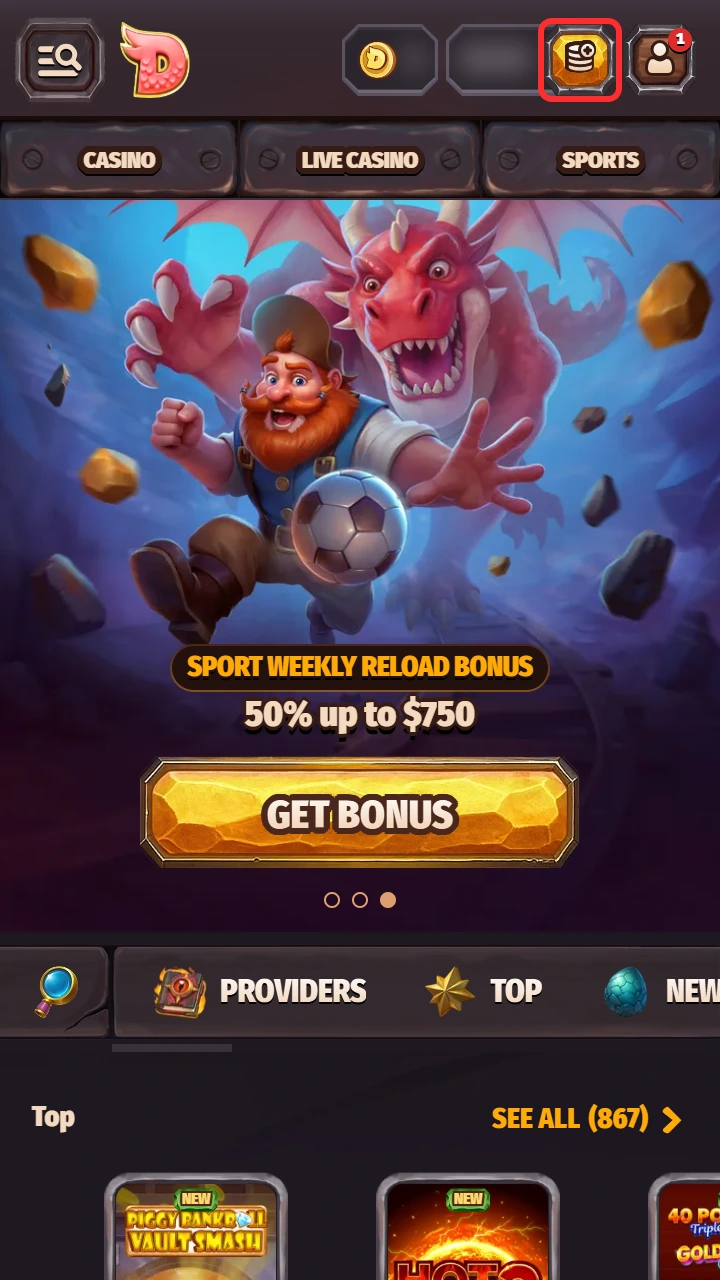
- Open the cashierTap your balance to open the cashier.
- Select WithdrawalSwitch from the deposit tab to the withdrawal tab.
- Choose a method and submitPick a method, enter the amount and submit. The cashier shows the limits for that method.
Bonuses & Promo Codes for Dragonia App Users
Dragonia's regular casino and sportsbook promotions are accessible through its mobile website. No dedicated mobile installation bonus has been verified. The Canadian welcome offer is 100% up to C$750, plus 200 free spins and one attempt at Bonus Crab, a claw machine. Choose it during registration and activate it in the My Bonuses section. Key terms:
- Minimum qualifying deposit: C$30.
- Wagering: 35x on deposit plus bonus, within 10 days.
- Maximum bet while a bonus is active: C$150.
- Free spins: 20 per day for 10 days. Claim each daily pack within 24 hours.
No promo code is needed for the standard welcome bonus. For offers that require a code, use the I have a promocode option in the sign-up form. Read the full terms in your account before you opt in. Challenges, Tournaments and the Shop appear in the menu. The Shop lets you swap coins for rewards. See the bonuses page for details.
Dragonia Mobile Web Version
The mobile web version is the core of the Dragonia app experience in Canada. It works in any modern browser and needs no installation. The layout adapts to your screen size automatically. Casino, Live Casino, sports, cashier and support all stay available. Add it to your home screen for one-tap access, or keep it as a bookmark. A stable connection is needed for live play.
Pros & Cons of the Dragonia App (Mobile Site)
For players in Canada, the home-screen shortcut turns the mobile site into a fast, thumb-friendly tool. It comes with a few trade-offs.
Pros
- Casino, Live Casino and sports in one place.
- Layout adapts to phones and tablets.
- One-tap home screen icon.
- Cashier, promotions and Live Chat on mobile.
- Nothing to download or update.
- Works in the browser on any device.
Cons
- No native app, APK or store listing.
- No dedicated mobile installation bonus.
- Reported restrictions in Ontario and Alberta.
- A stable connection is needed for live play.
Is the Dragonia App Safe to Use in Canada?
Treat safety as a habit. Use only the links on this site, keep your phone updated and pick a strong, unique password. Look for the padlock in your browser, which shows an encrypted connection. Never install a file that claims to be a Dragonia app. The brand is operated by NovaForge Ltd. It lists an Anjouan Gaming licence, number ALSI-152406028-FI2. Check the licence details in the terms before you deposit. Dragonia is reported to restrict players in Ontario and Alberta. Availability in other Canadian provinces may vary. Access to the site does not establish local regulatory authorization.
FAQ
Is there a Dragonia APK or an app in the App Store?
No native app has been verified. There is no Android APK, no App Store app for Canada and no PC client. Use the mobile site and add it to your home screen.
Is the home-screen shortcut free?
Yes. Adding the shortcut costs nothing. Your mobile data plan and any deposits you make are separate costs.
Do I need to enable unknown sources on Android?
No. There is no file to install. Open the site in Chrome and use Add to Home screen. Do not change security settings for a file that claims to be Dragonia.
Can I use it on an iPhone without the App Store?
Yes. Open the site in Safari, tap Share, choose Add to Home Screen and tap Add. You get an icon that opens full screen.
Is there a bonus for adding the shortcut?
No dedicated mobile installation bonus has been verified. Regular promotions are accessible through the mobile website.
Is it available everywhere in Canada?
No. Dragonia is reported to restrict players in Ontario and Alberta. Availability in other provinces may vary. Check the terms for your province before you register.
Will my account and balance sync with desktop?
Yes. It is one account, so your balance and history follow you across devices.